Humble 2.0 has the ability to allow for kitchen printing. Kitchen printing allows you to print your normal receipt, as well as a receipt/slip for the kitchen to complete orders e.g. burgers and chips.
To set up kitchen printing, go to Settings (the cog on the top right next to your name). You will be taken to the General Page. Click on Connect Hardware.
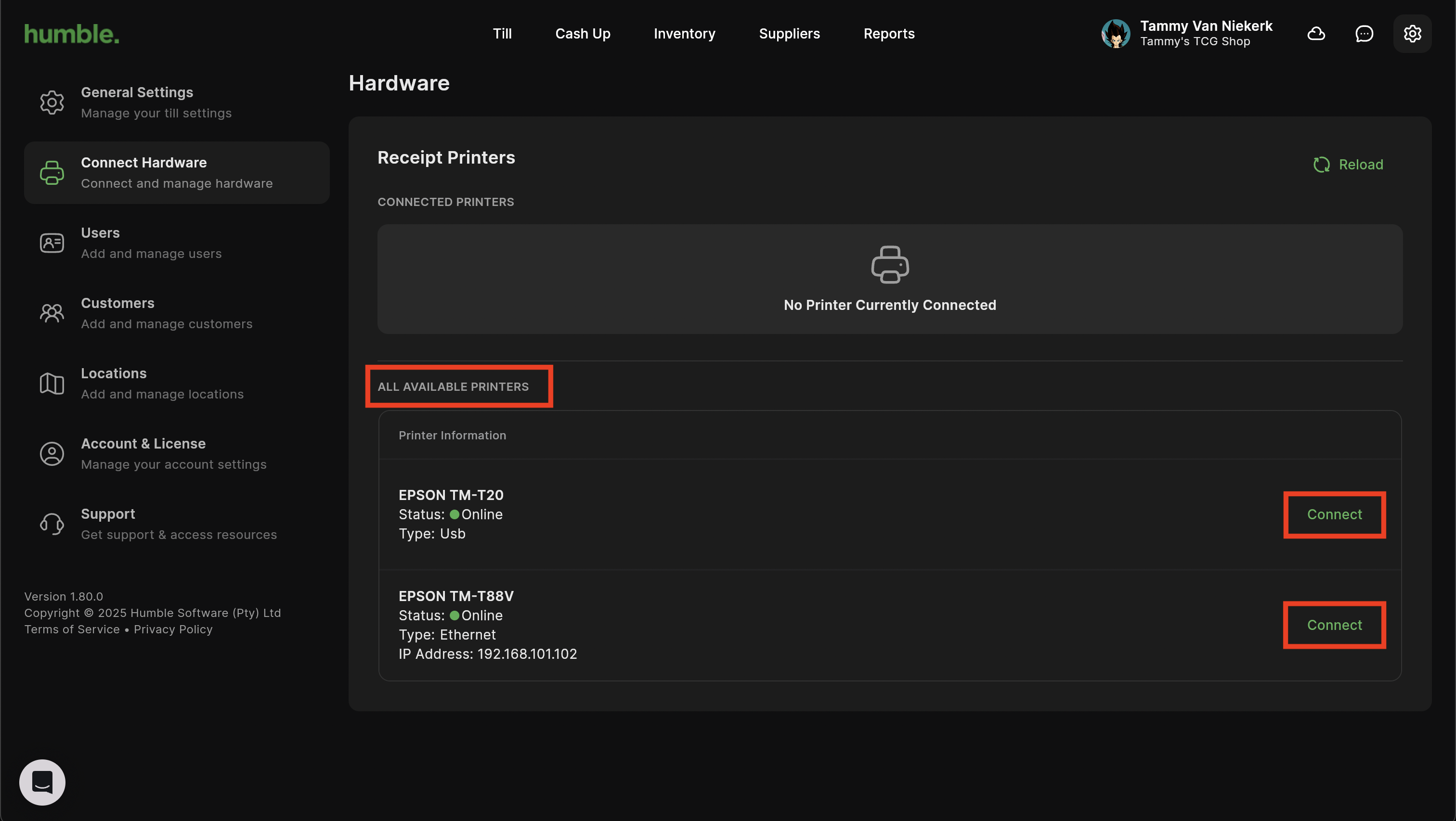
When you first land on the Hardware section, the pos will automatically search for any receipt printers they may be connected via usb or connected to the same network as your computer/device.

Once we have discovered an available printer/s, we will be able to connect to any available printers that have been found. To use a printer, click on Connect.
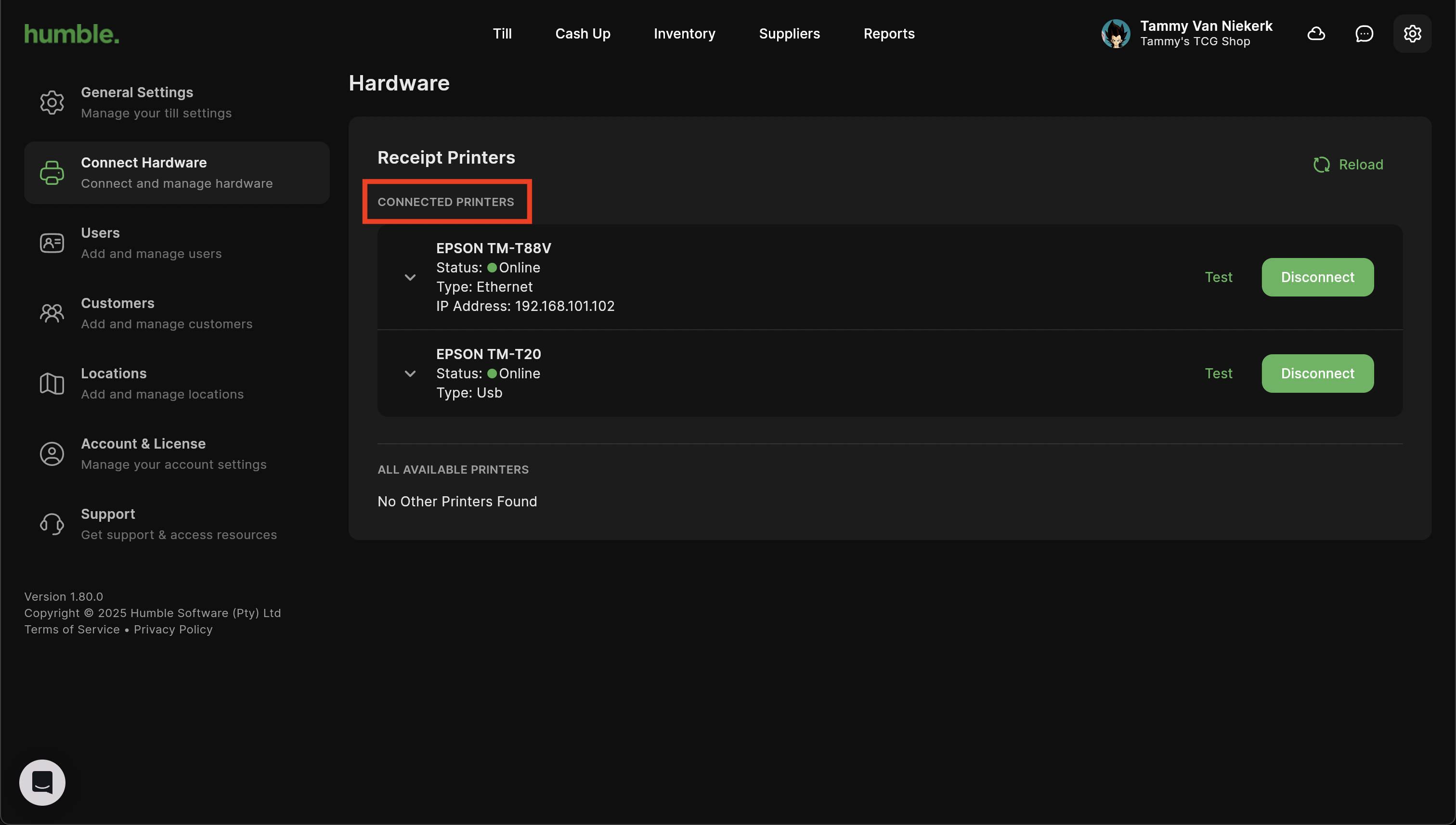
Your selected printers will now show under "Connected Printers" and you will be able to print to them.
- To print a test page to confirm that your printer is connected correctly, click "Test".
- If you have selected the incorrect printer and do not wish to use it, click "Disconnect"
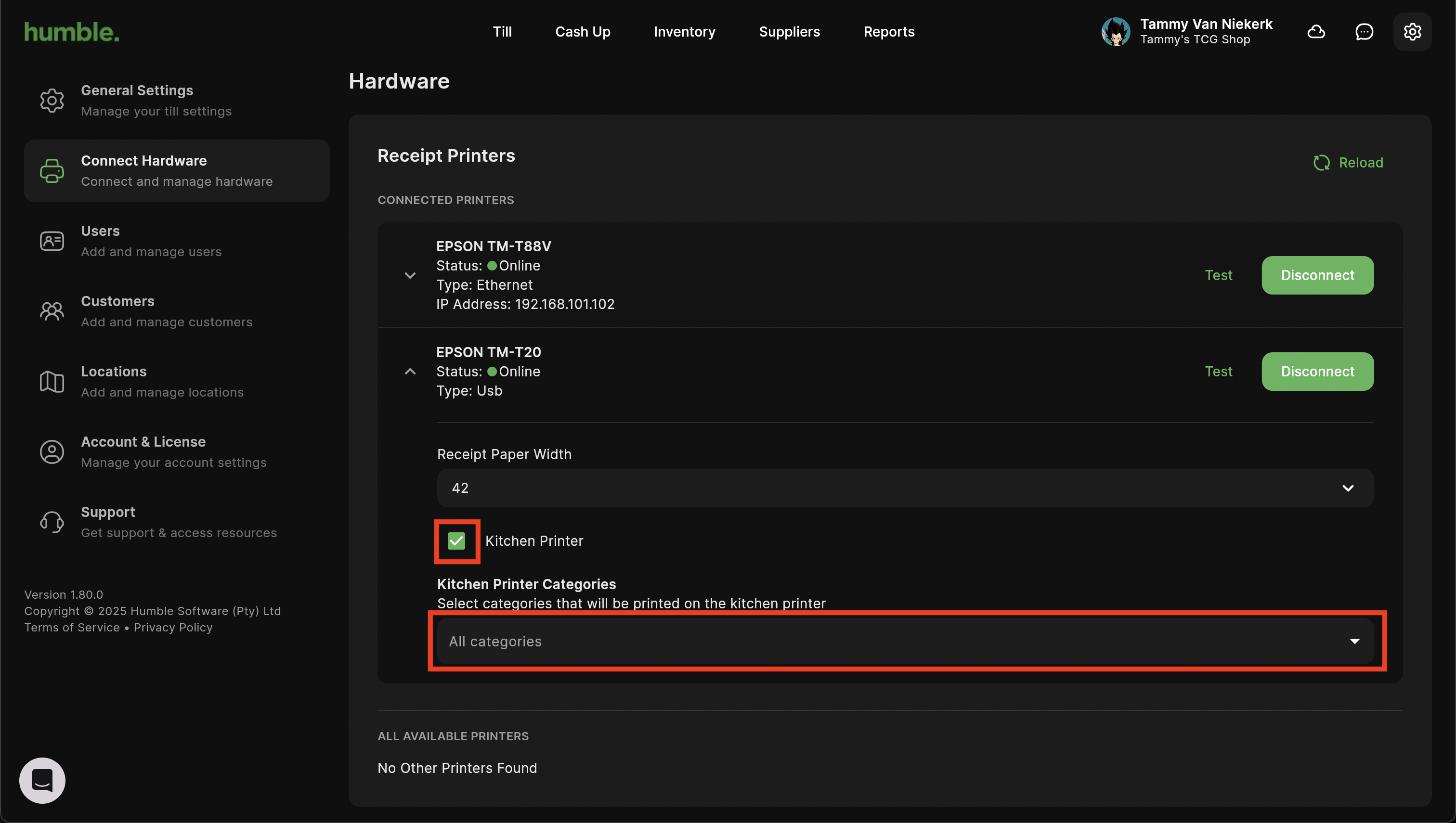
Click on the down arrow to the left of your printer's name to expand on the printer's information. Here you will be able to adjust the width of the paper that your receipt printer is using, and you will be able to set it as a kitchen printer.

Once you have selected which printer you wish to be your kitchen printer, you will be able to select if you want it to print a kitchen slip for all categories (by default), or specific categories. Click on "All categories" to open the category list and select one or multiple categories.
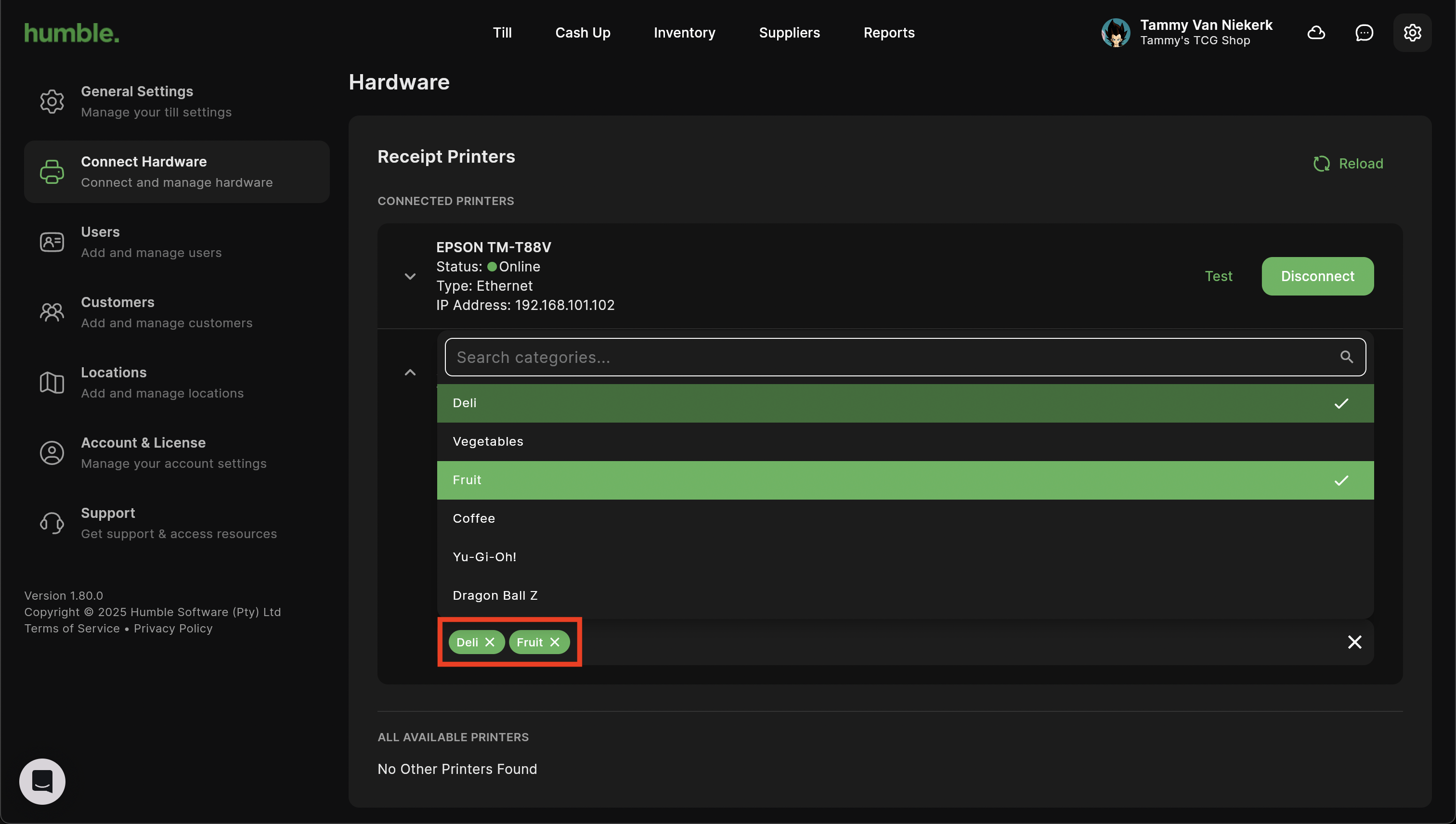
Once you have set up your categories, you can continue with sales as per normal.
Once you have completed a sale, on the Sale Complete modal you will have the options to "Reprint Receipt" and "Reprint Kitchen Order".
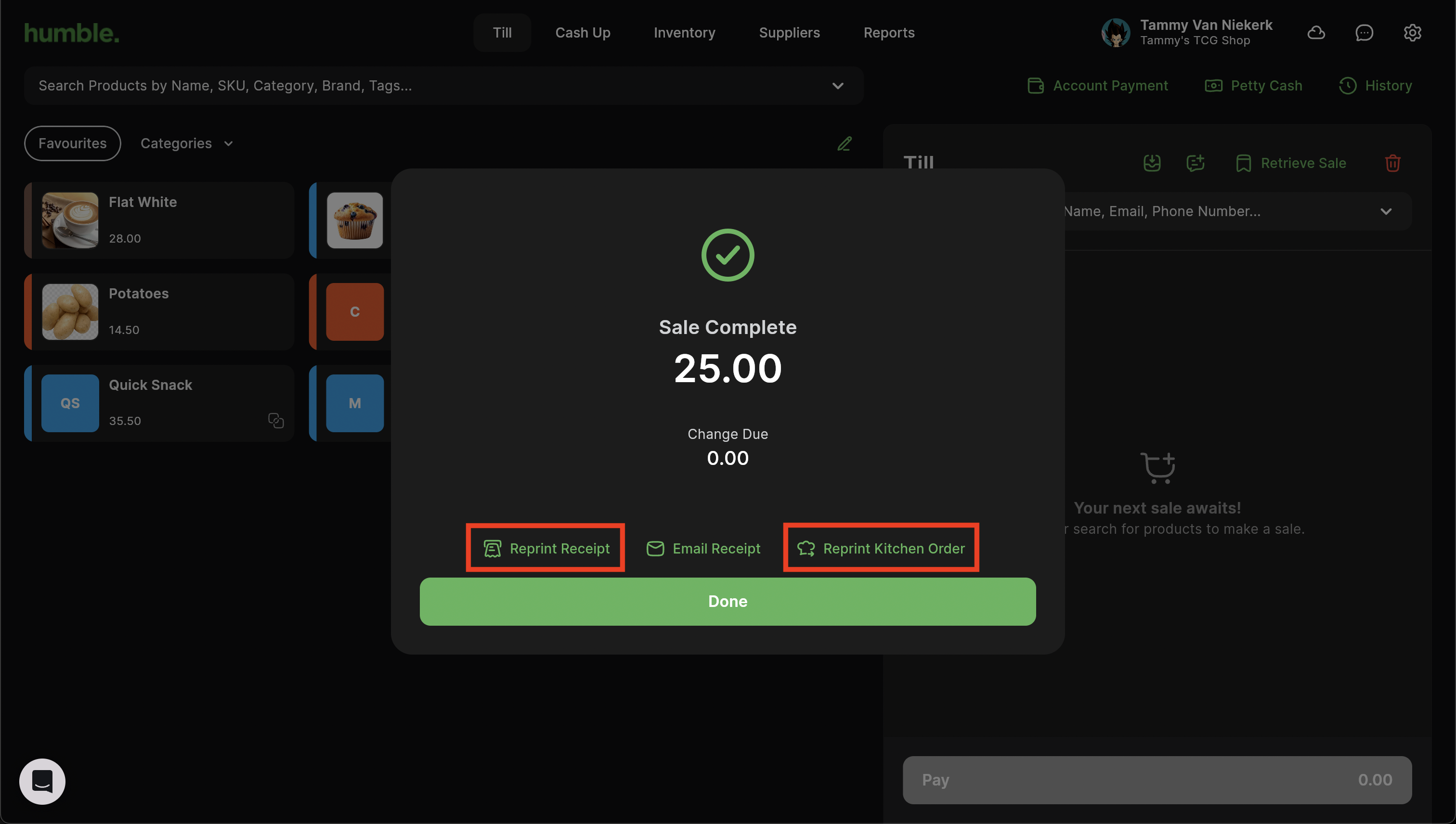
Note: "Reprint Kitchen Order" is only visible when you have a kitchen printer set up.
Was this article helpful?
That’s Great!
Thank you for your feedback
Sorry! We couldn't be helpful
Thank you for your feedback
Feedback sent
We appreciate your effort and will try to fix the article