We have added in the ability to print barcodes straight from Humble 2.0 POS to a label printer.
To print a label, go to Inventory > Products and add a new product or click into an existing product.

Scroll down to the Barcode section.
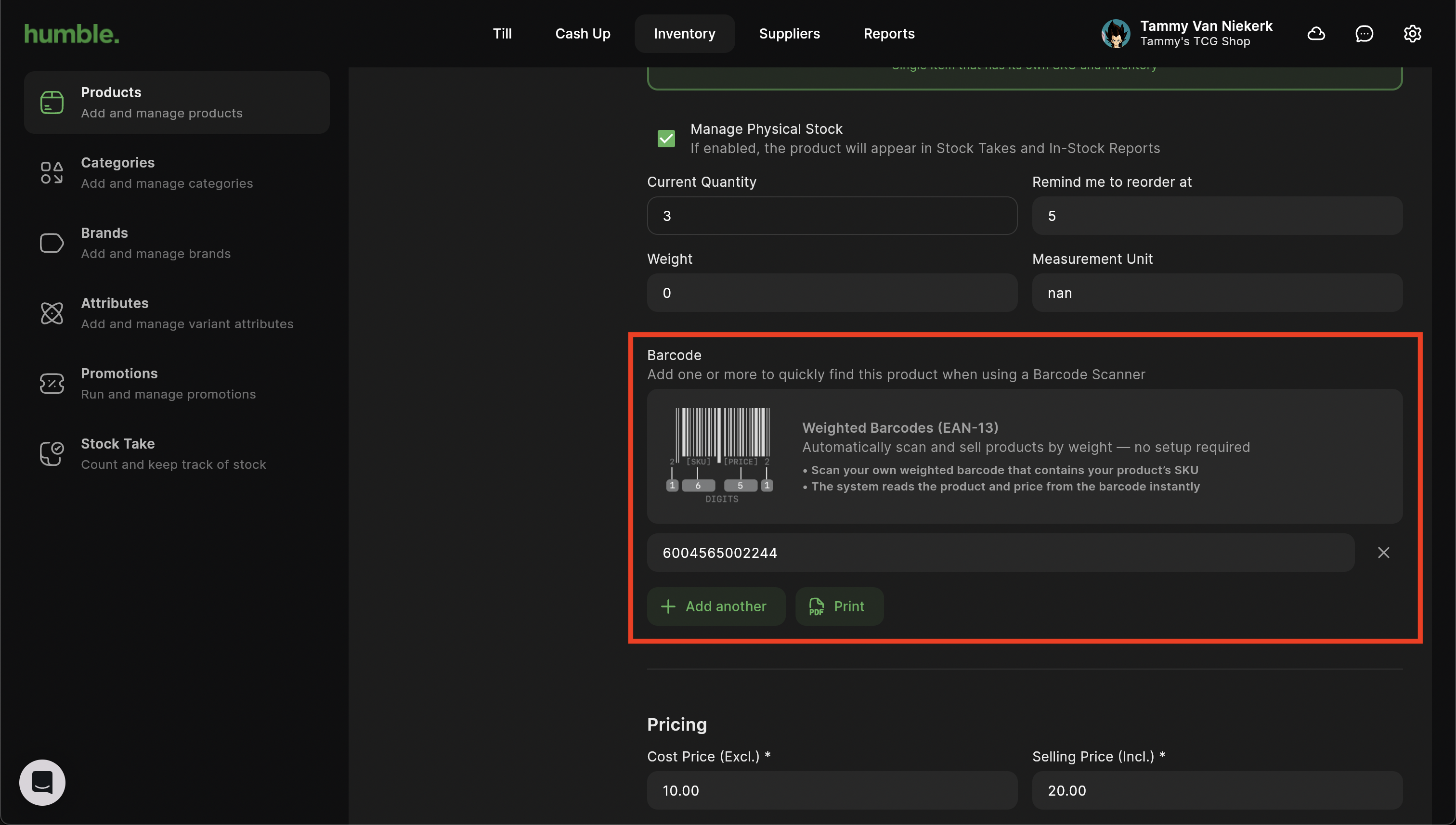
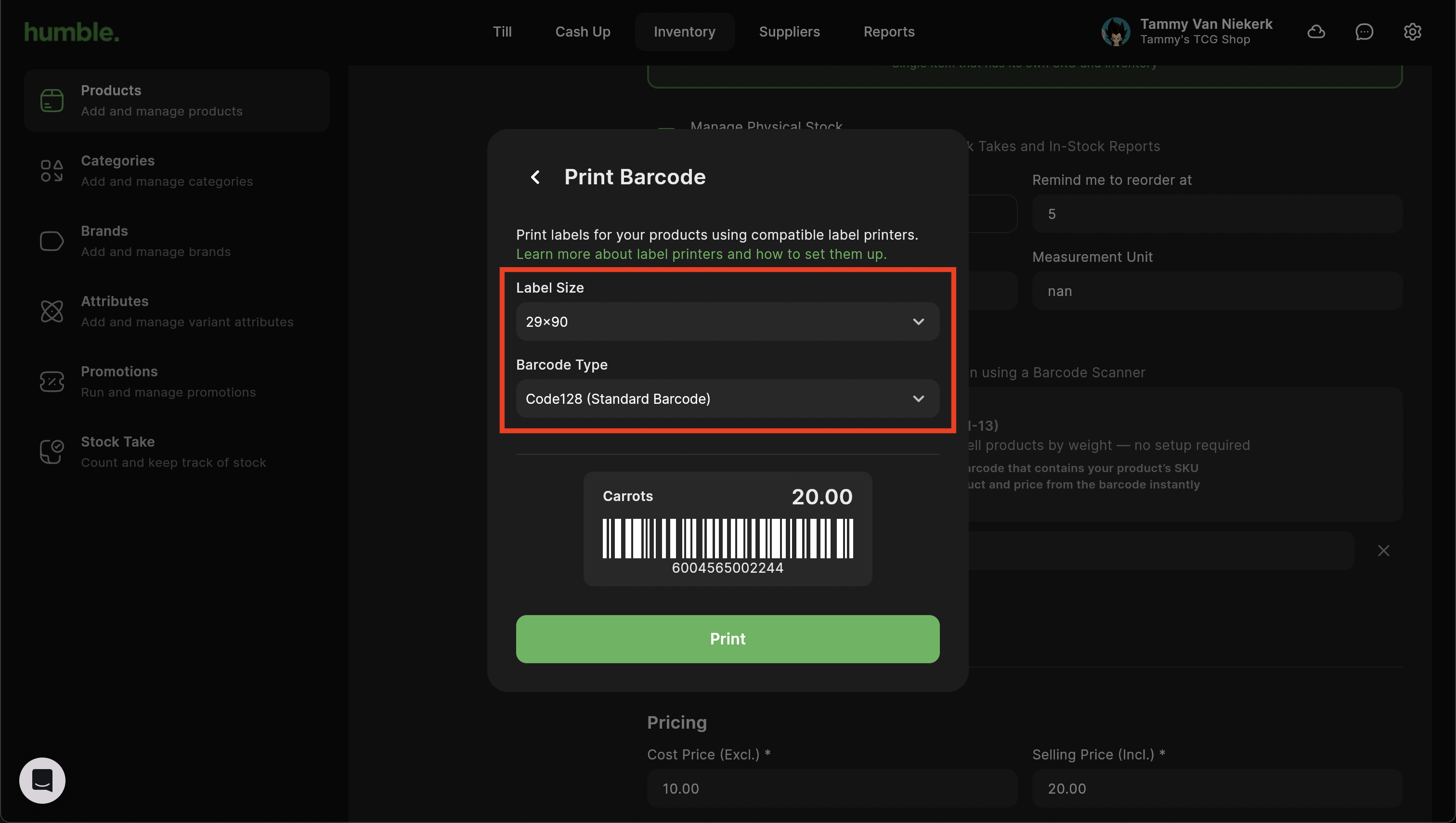
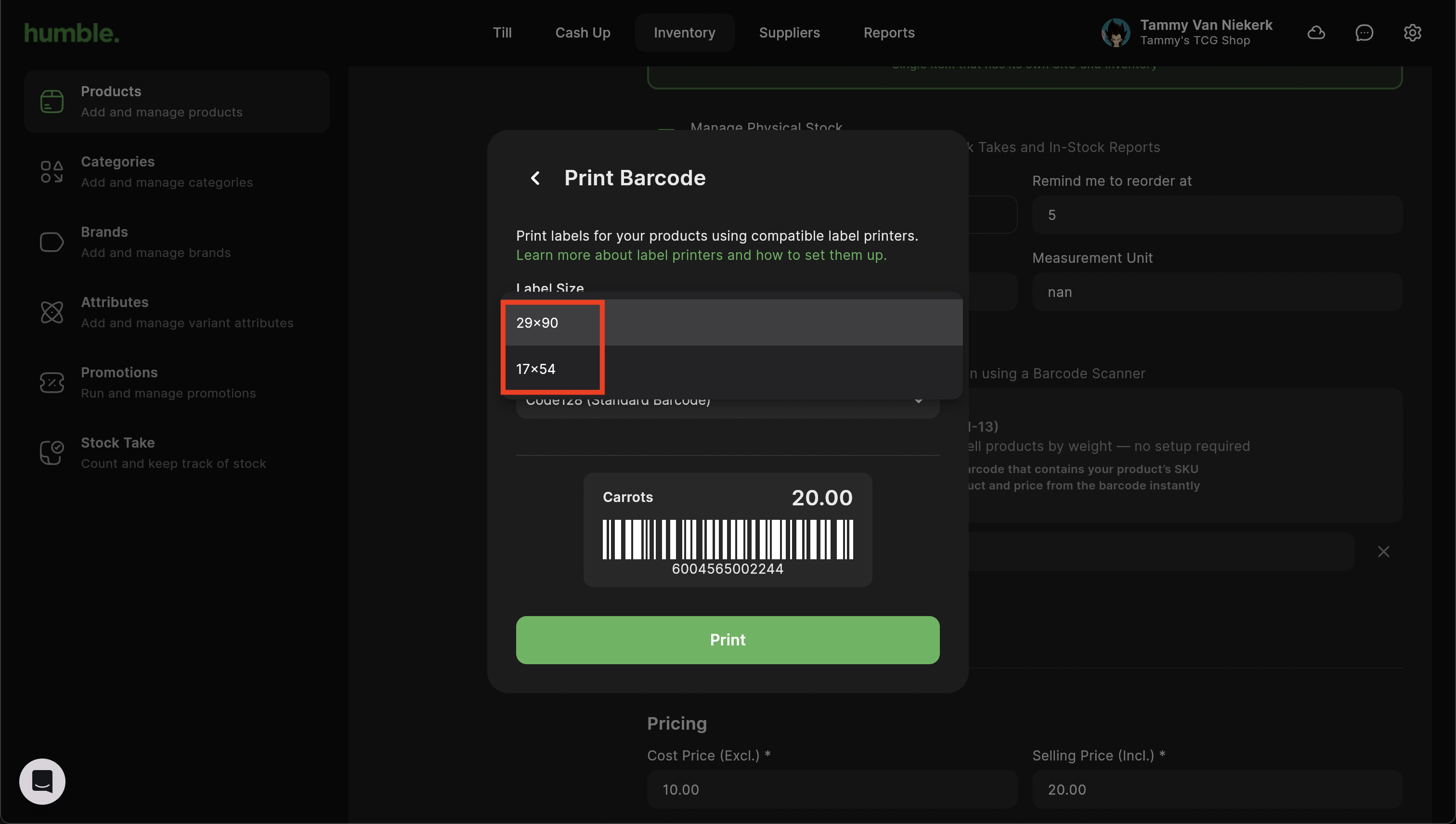
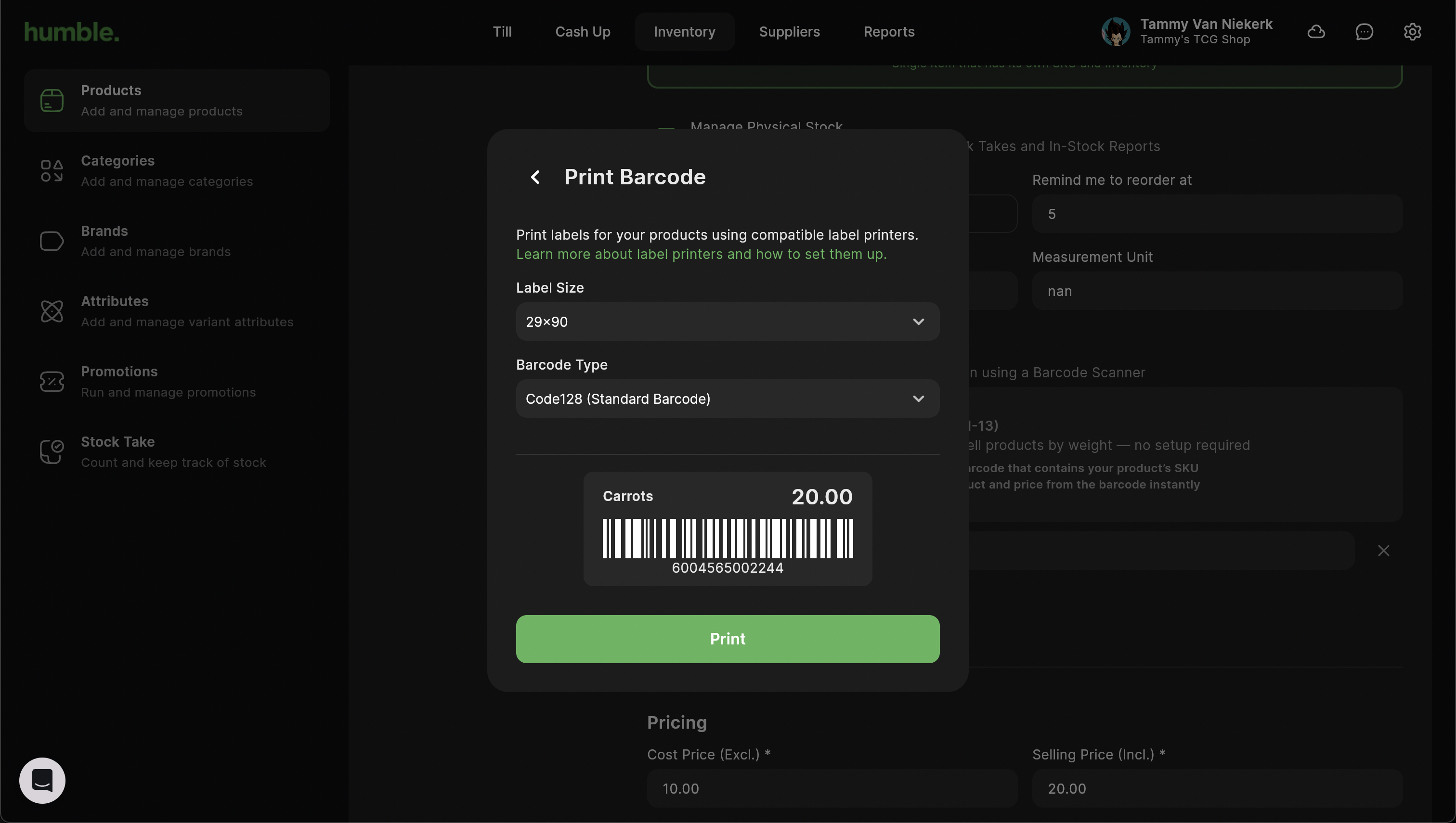
If you haven't already done so, add in a barcode by typing or scanning the barcode. Next click Print, this will open the Print Barcode modal. Here you will be able to set the label size and barcode type by clicking on the drop downs.
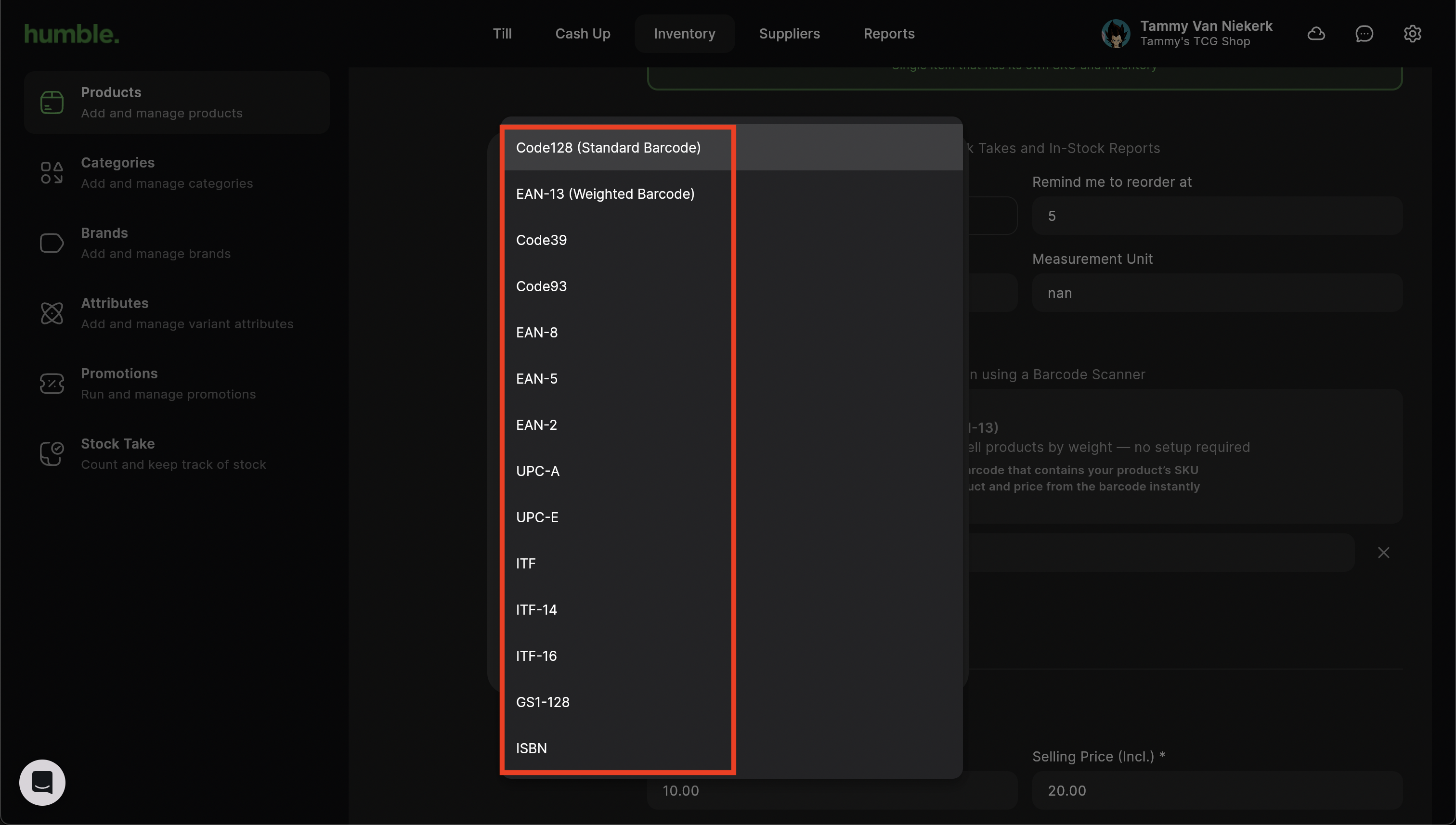
The most common barcode types are:
- Code129 for standard barcodes
- EAN-13 for weighted barcodes
Once you have selected your settings, click Print to print your barcodes.
Was this article helpful?
That’s Great!
Thank you for your feedback
Sorry! We couldn't be helpful
Thank you for your feedback
Feedback sent
We appreciate your effort and will try to fix the article