If you find that you need to void a sale, you can go to History to search for the sale in question.
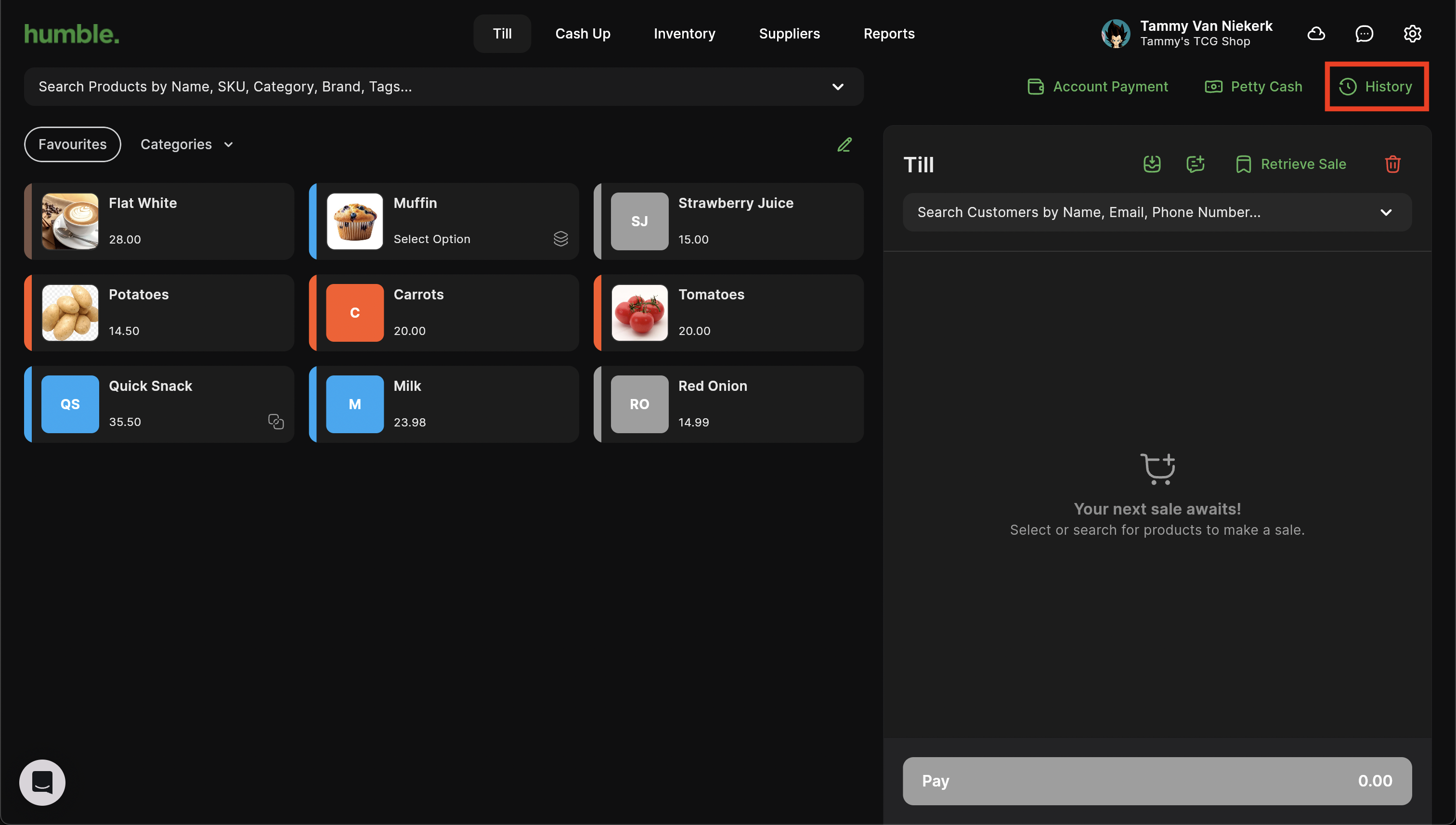
This will open the History screen, where you will see all of your previously completed sales and transactions. By default, you will be able to search by the Sale ID, the Date of the sale and the Total of the sale in the first search bar.
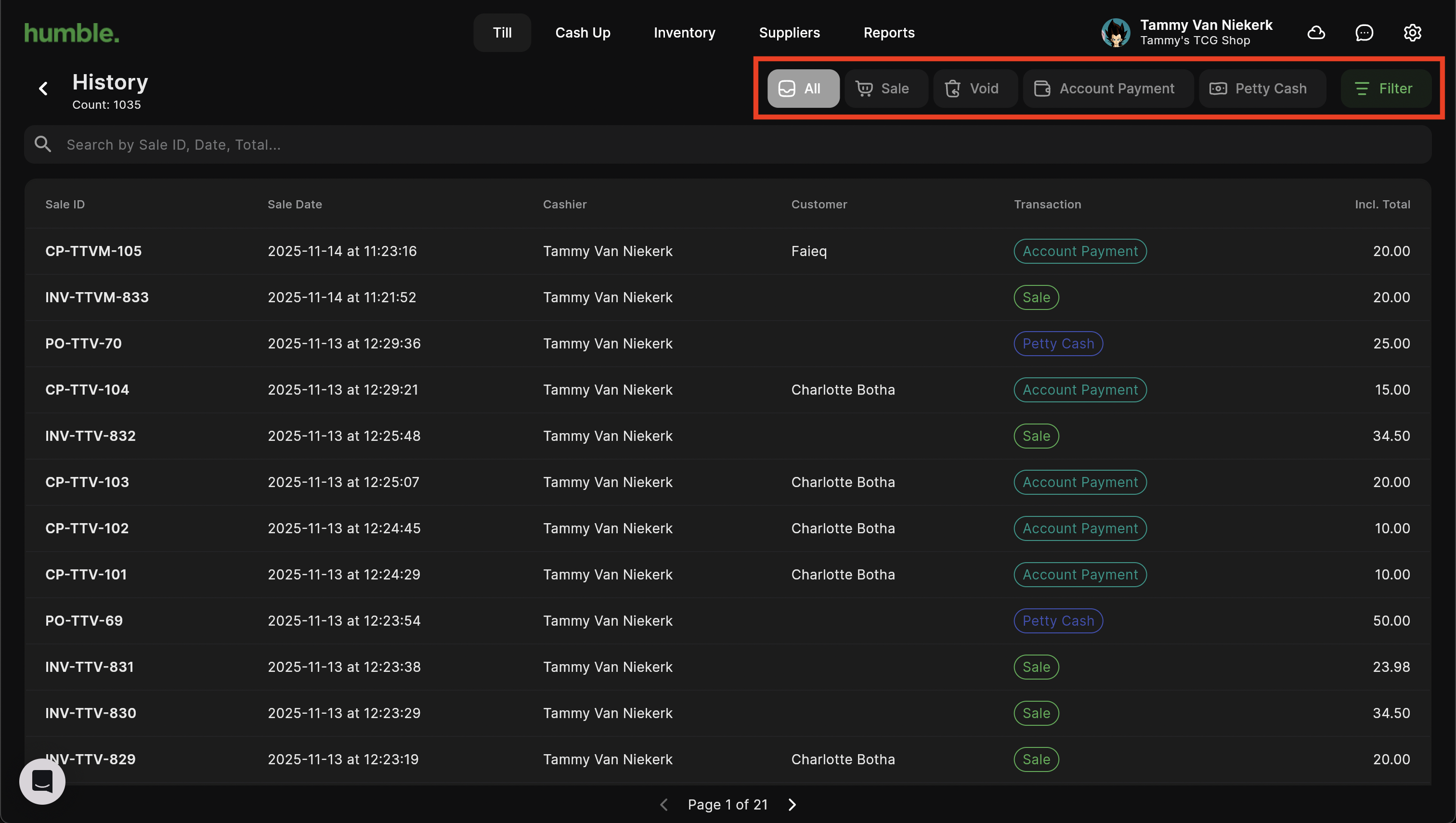
If you cannot remember the specific details, you are able to filter by All, Sale (this includes sales and Refunds), Void, Customer Payment and Petty Cash.
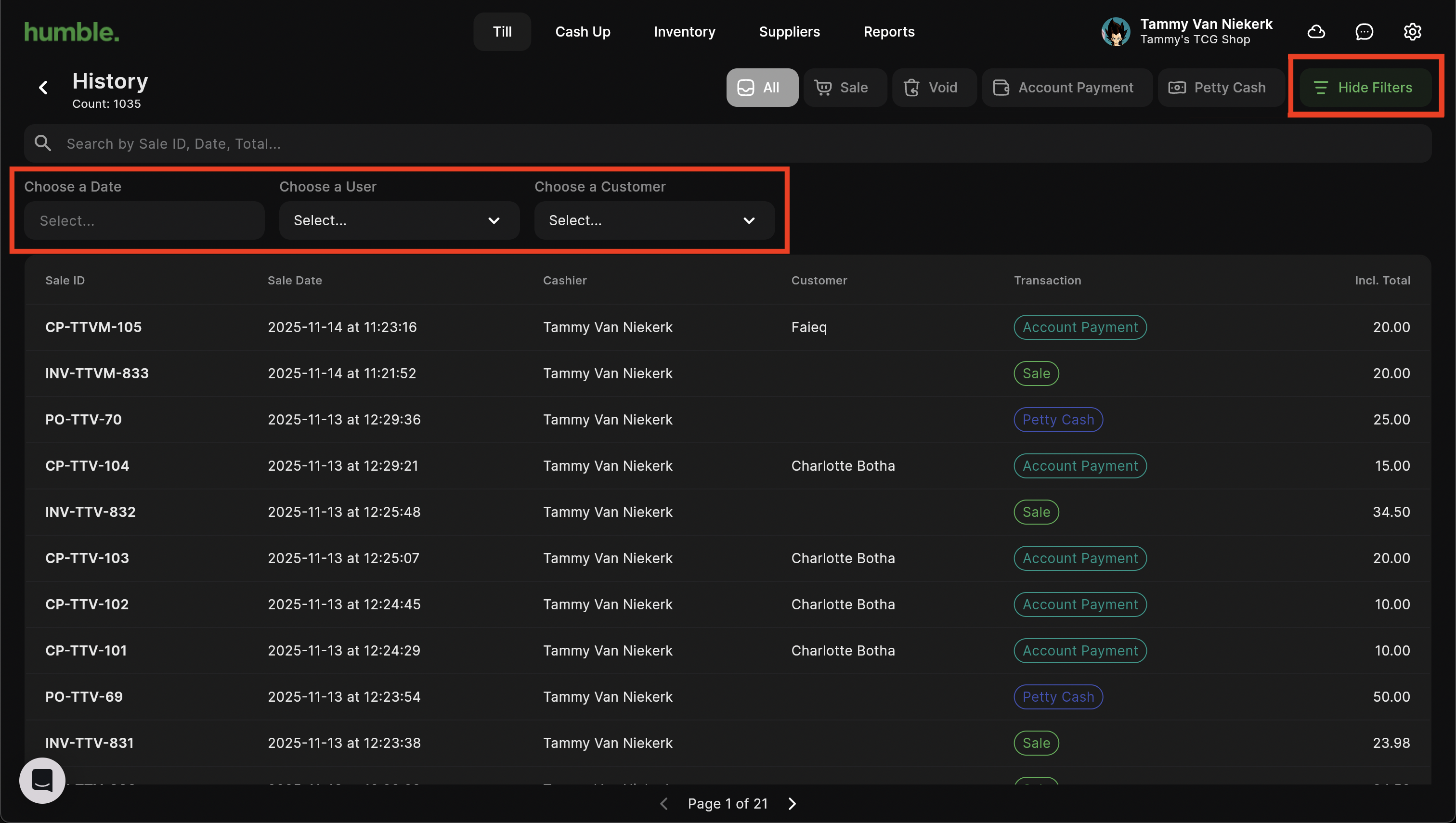
If these do not help, click on Filter on the top right hand corner. This will open up more advanced filters that you can use.
Filter will change to Hide Filters, and you will see more filter options underneath the original filters. You can now filter by a specific Date or date range, the User, Store and Customer.
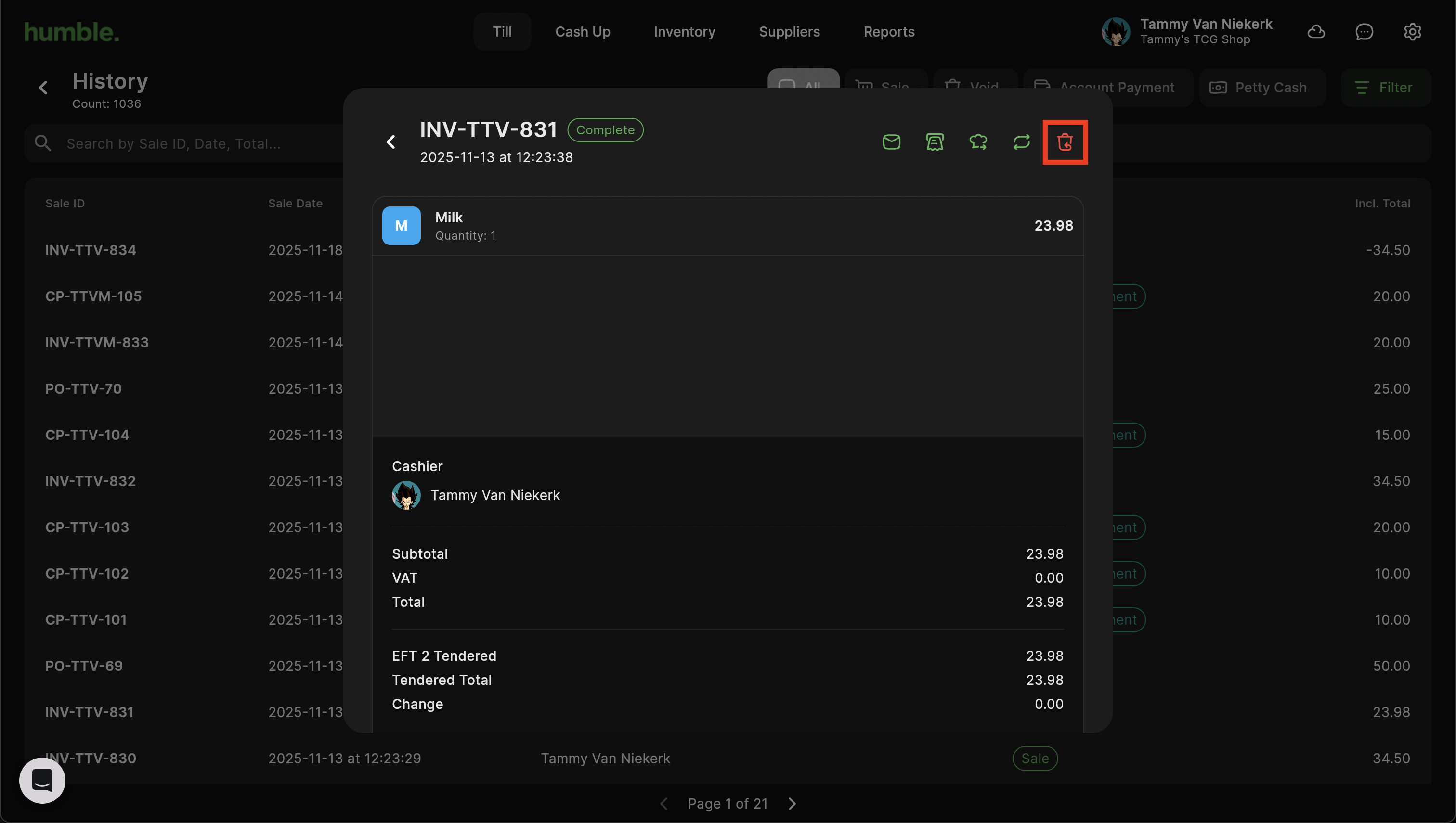
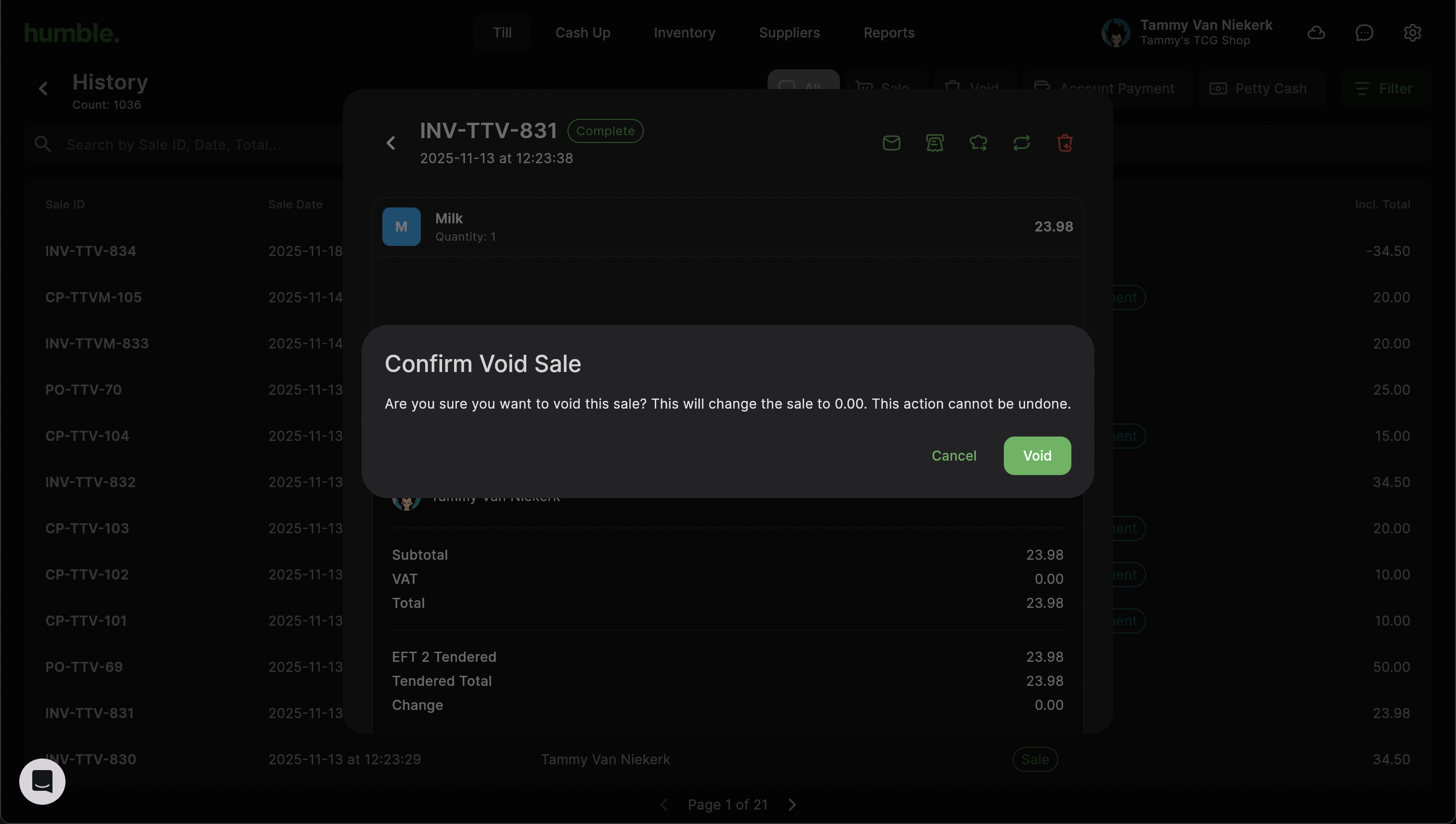
Filtering will narrow down the list to find your sale easier. Once you have found your sale, click on it to bring up the sale details. Click on the Void button. This will bring up a confirmation message.
To continue voiding the sale, click on "Void".
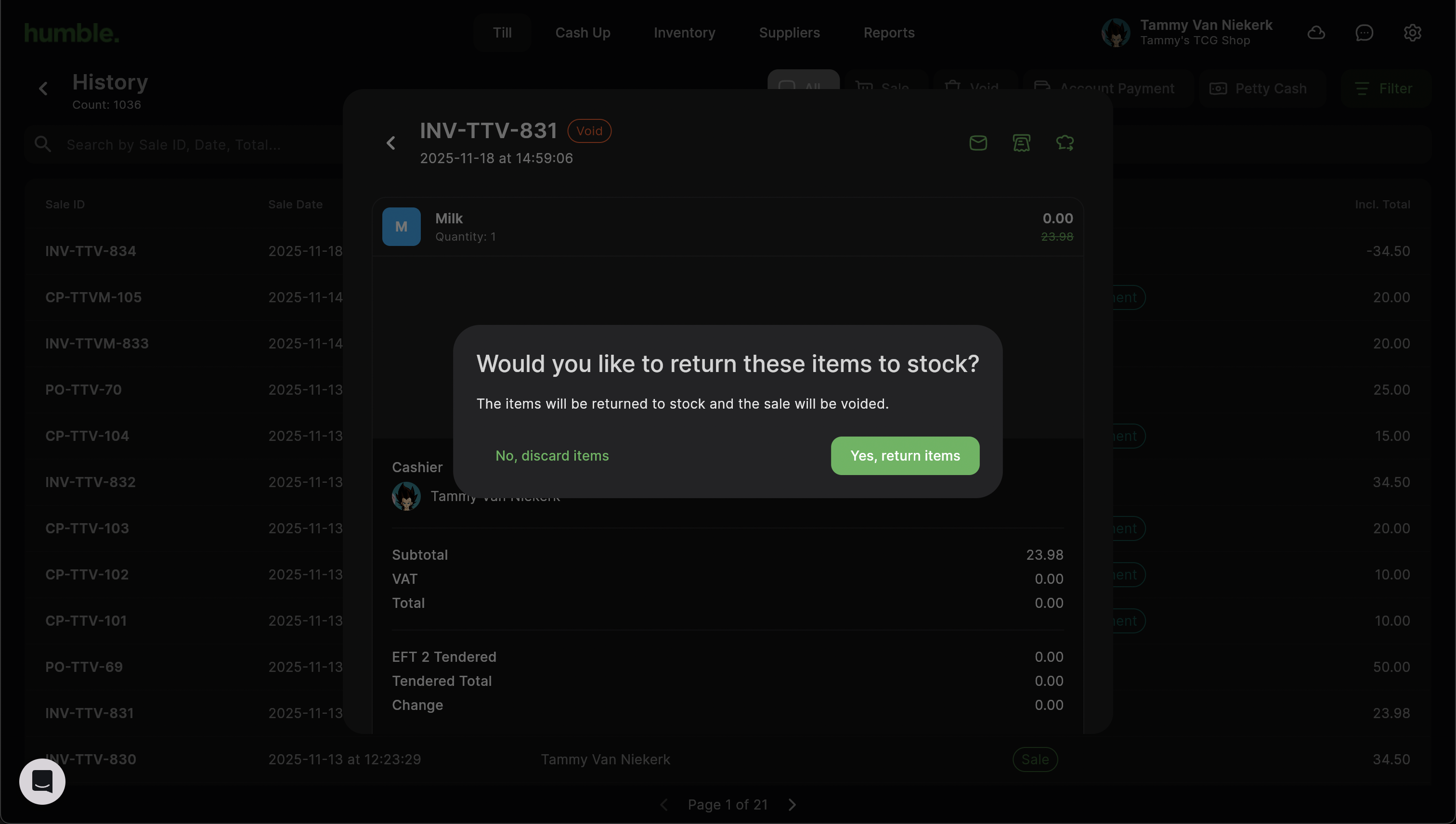
You will then be given the option to Discard Items if they were damaged, or to return them to your stock.
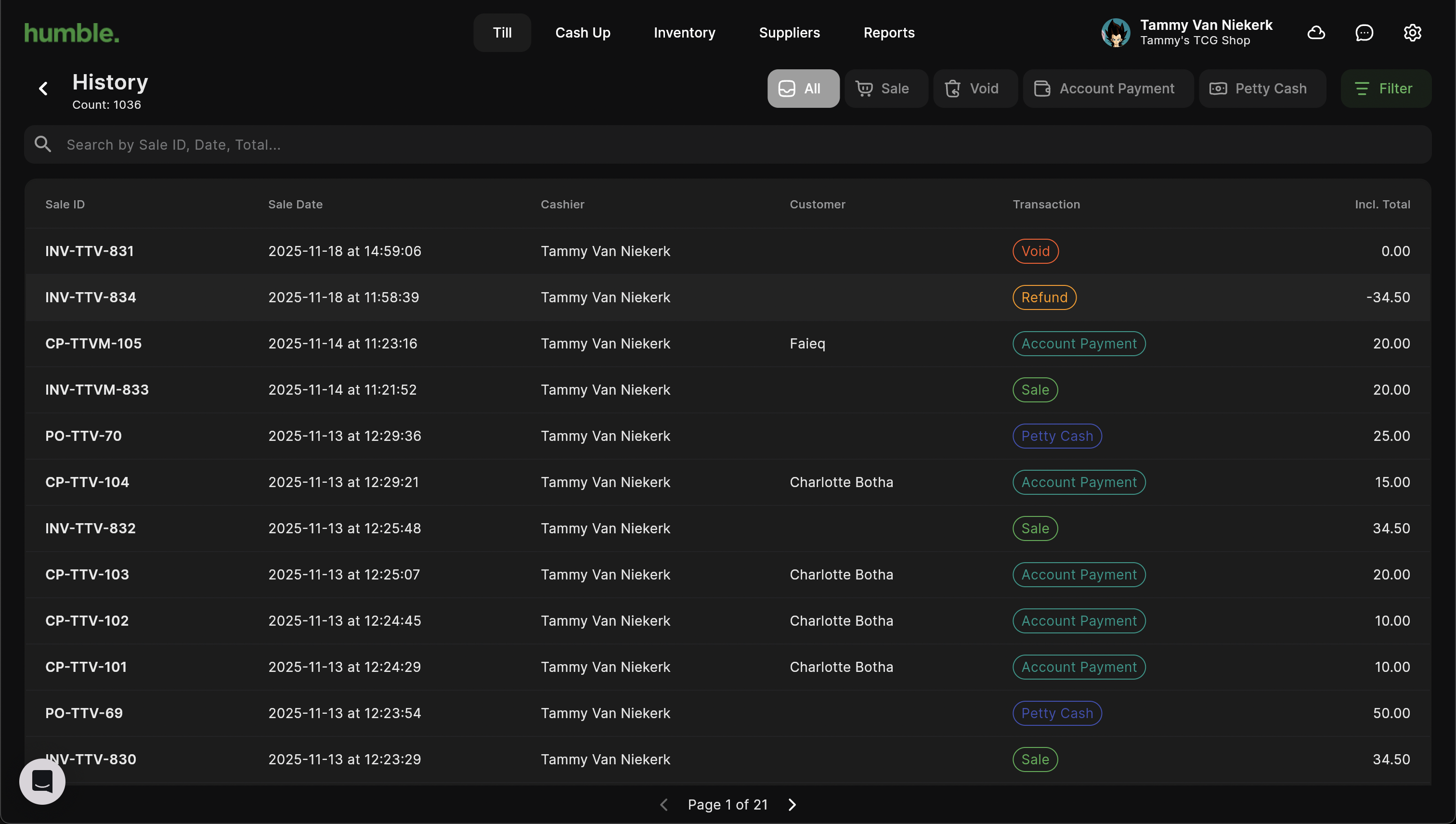
Once voided, your sale will show in the sale history.
Was this article helpful?
That’s Great!
Thank you for your feedback
Sorry! We couldn't be helpful
Thank you for your feedback
Feedback sent
We appreciate your effort and will try to fix the article