Humble 2.0 allows you to accept payments from customers who buy on account. Follow the steps below to receive a payment for an account.
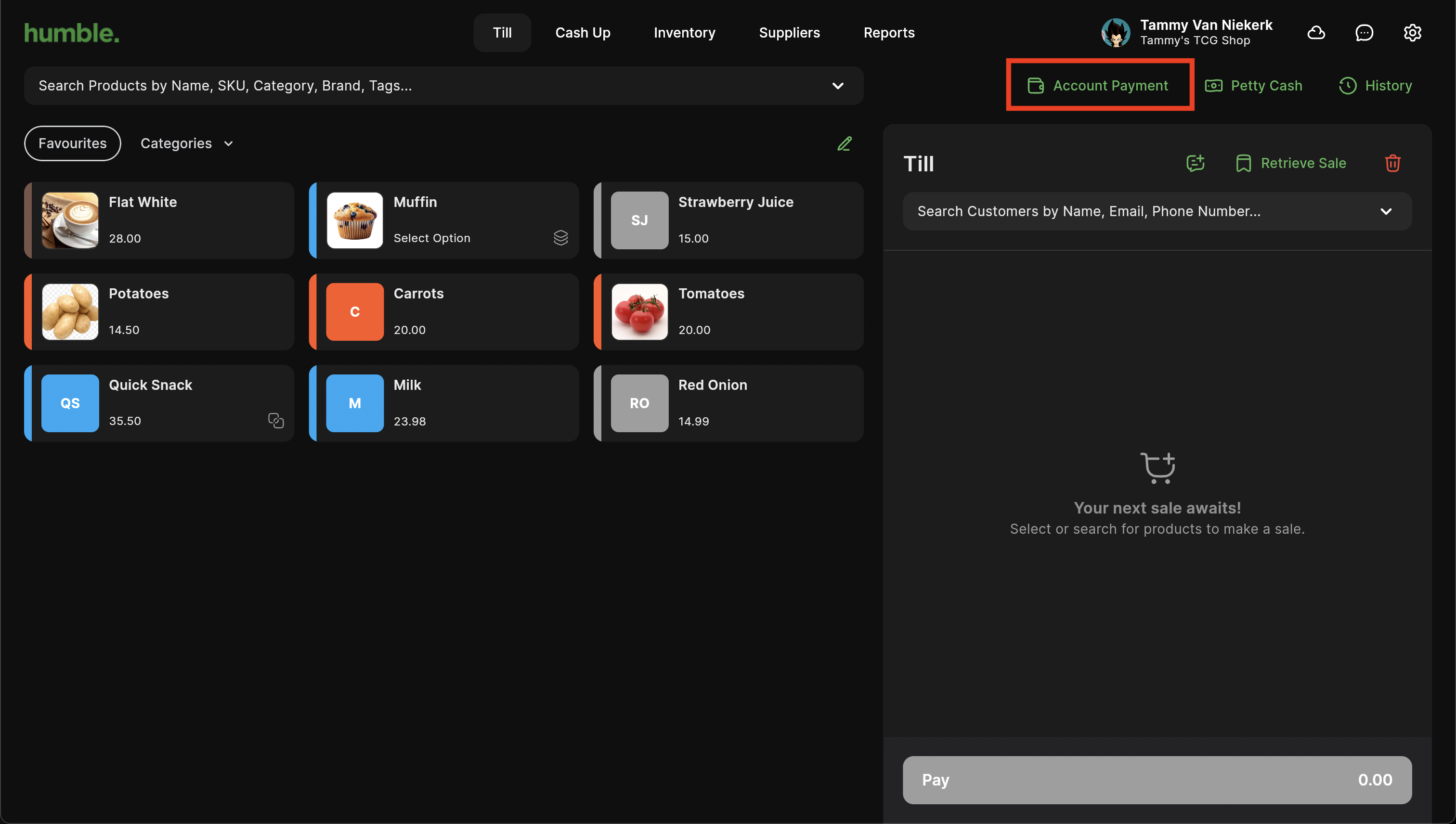
On the Till screen, click on Account Payment.
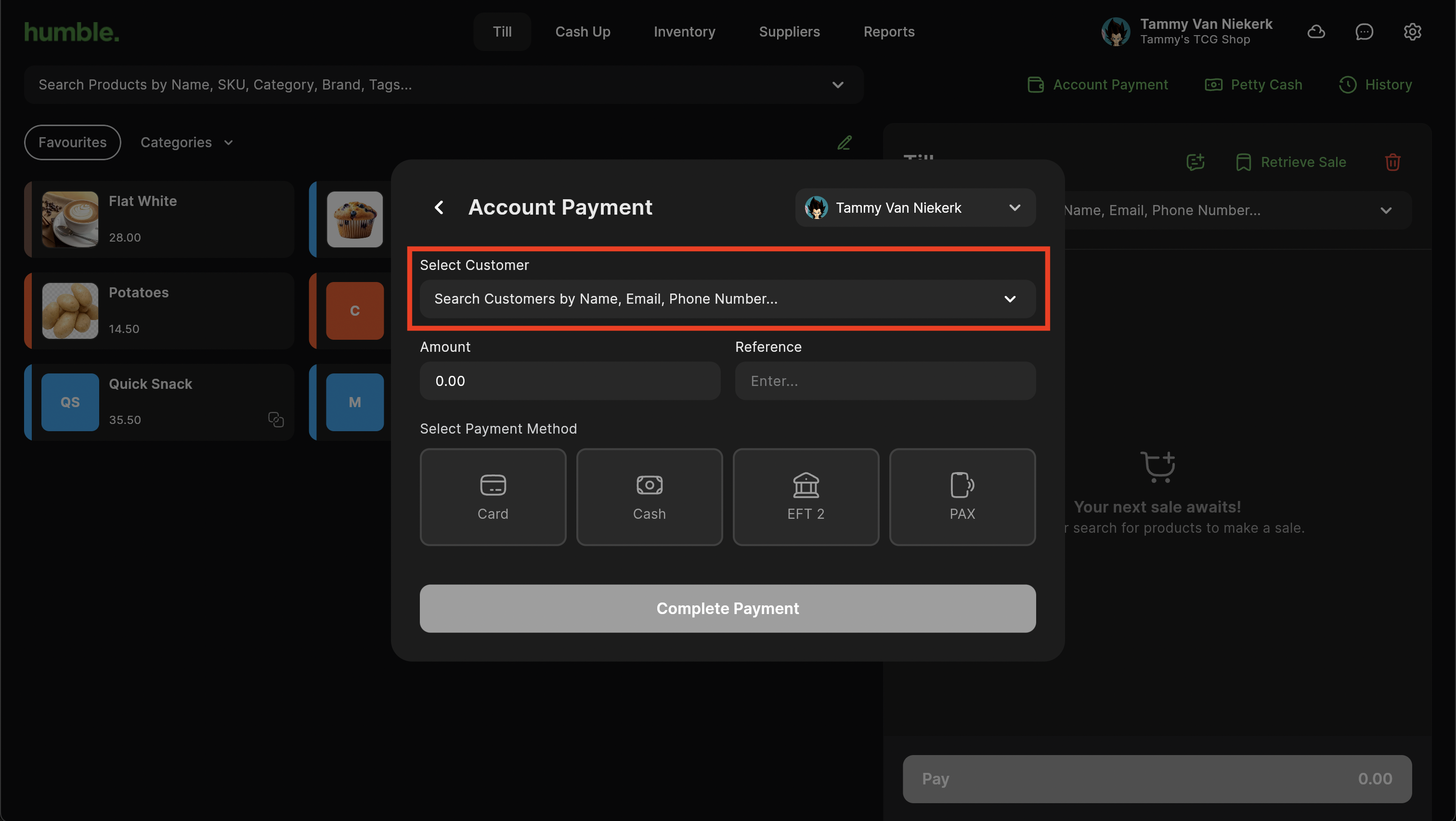
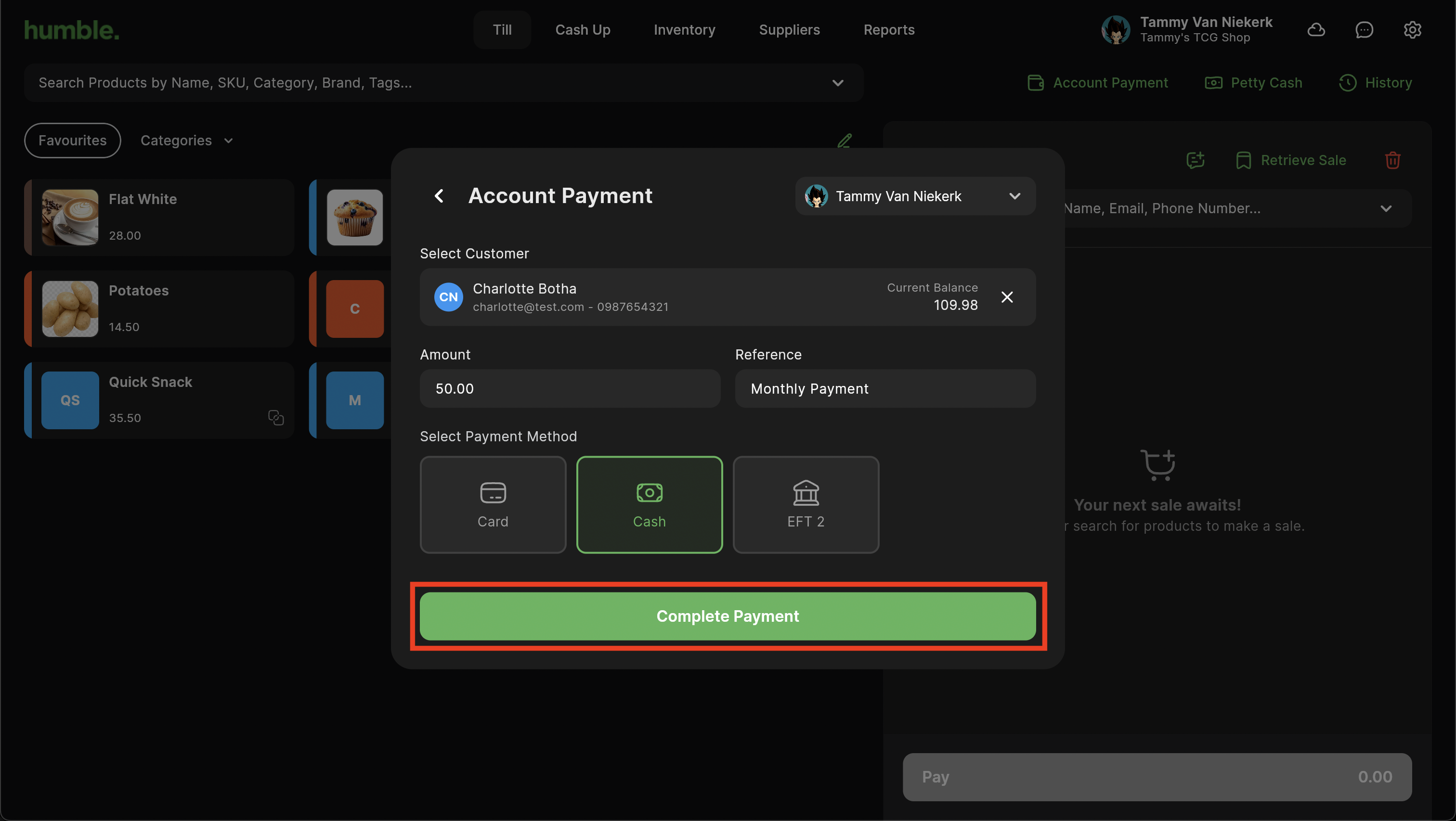
The Customer Account Payment Modal will appear. Click on the Search dropdown to open the Customer drop down.
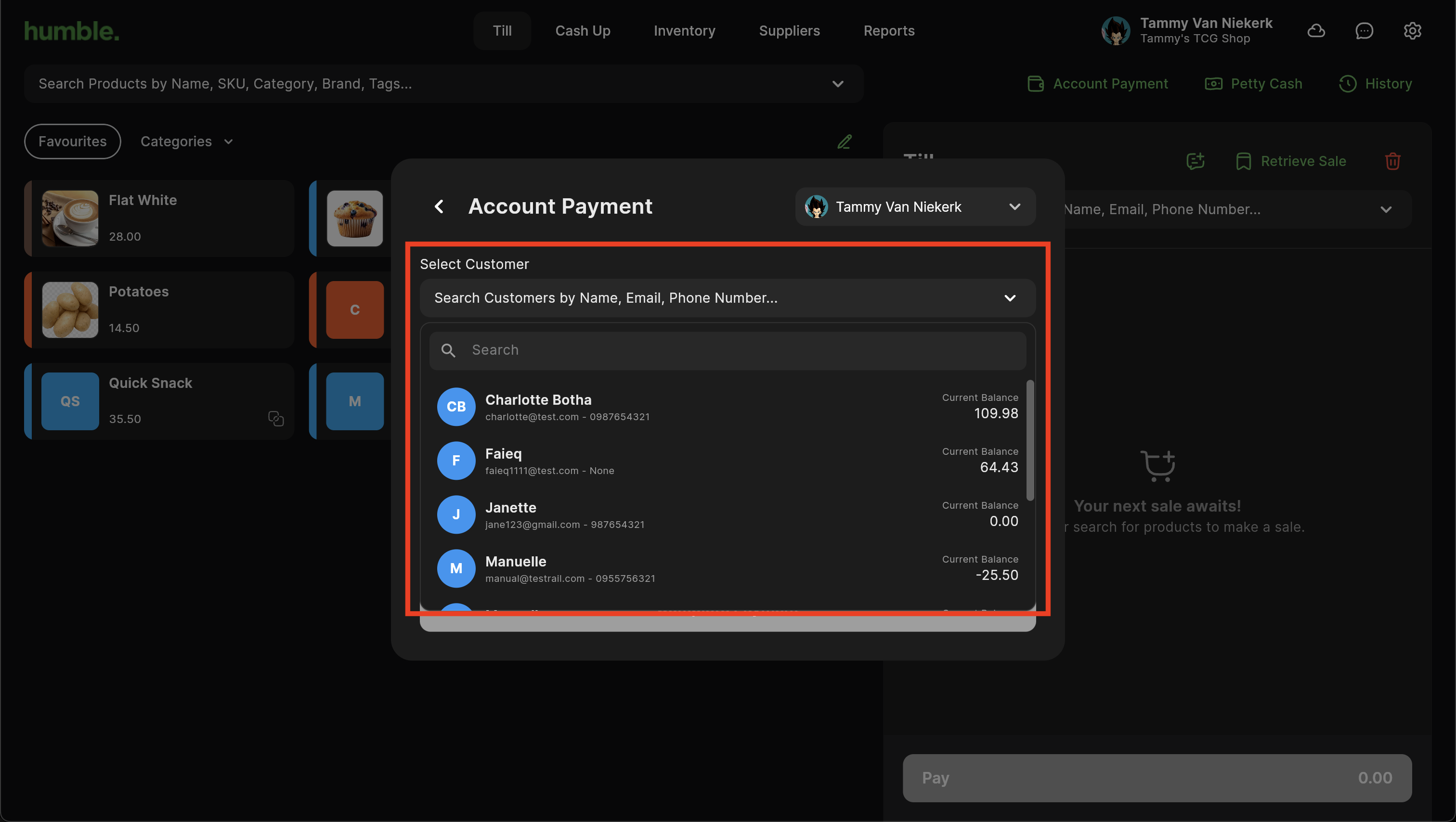
Select the customer that is paying their account.
Once you’ve selected the customer, their outstanding balance will be visible.
You can now go ahead and enter in the Amount that they are paying, and a Reference. Next, select the payment method your customer is paying their account with, this could be Cash, Card or another payment type that you have set up. If you have more payment methods, but they are not visible, please click on the drop down to select the correct payment method.
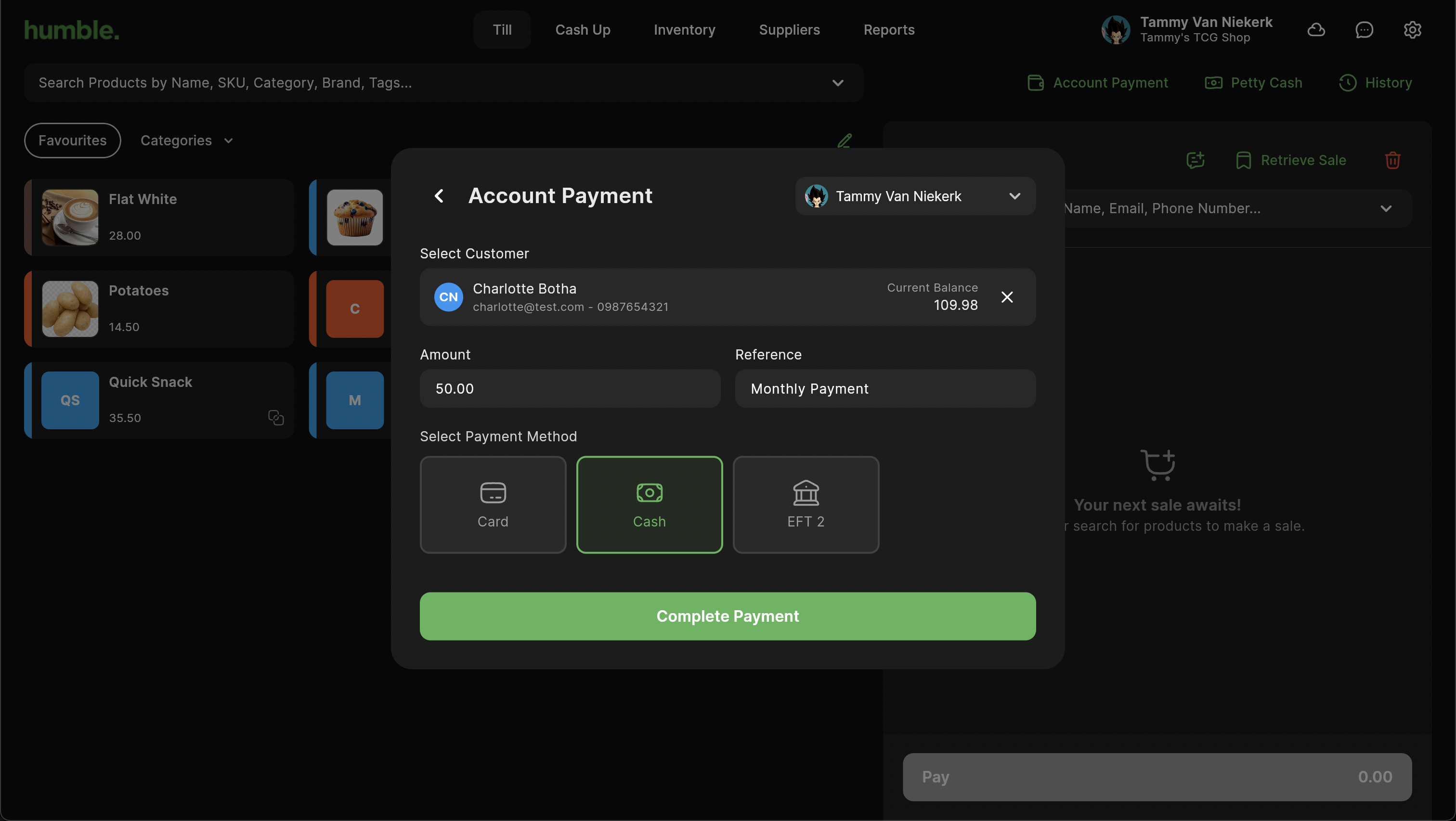
Once done, click on Complete Payment.
A copy of the Customer Account Payment will be downloaded to your Downloads folder, or printed if you have a receipt printer set up.
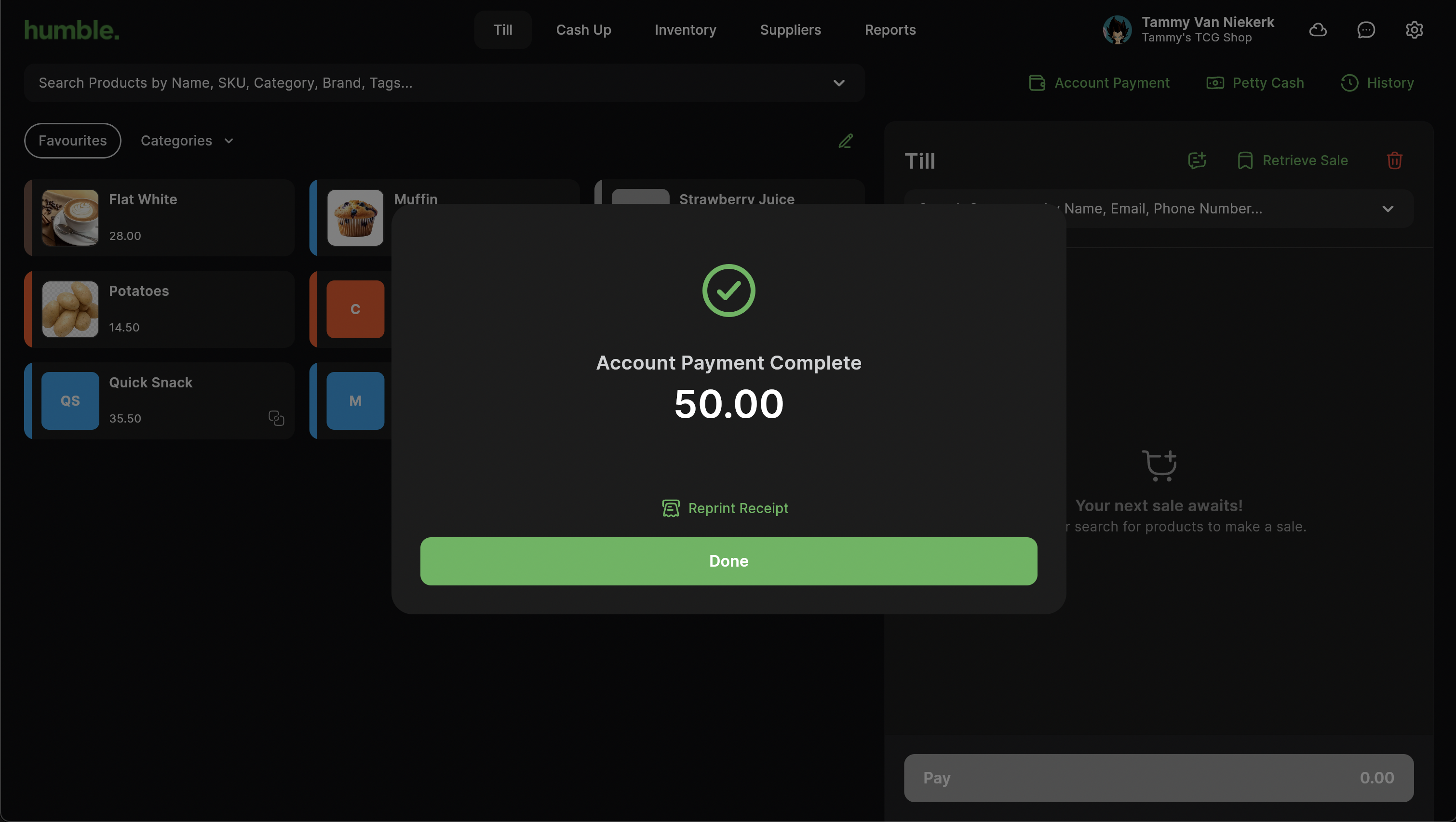
An Account Payment Complete modal will appear to confirm the payment is complete. Click Done.
The customer’s balance will decrease accordingly, based off of the amount that was paid in.
Was this article helpful?
That’s Great!
Thank you for your feedback
Sorry! We couldn't be helpful
Thank you for your feedback
Feedback sent
We appreciate your effort and will try to fix the article