To add a new location, go to Settings (the cog on the top right next to your name). You will be taken to the General Page. Click on Locations and then Add Location.
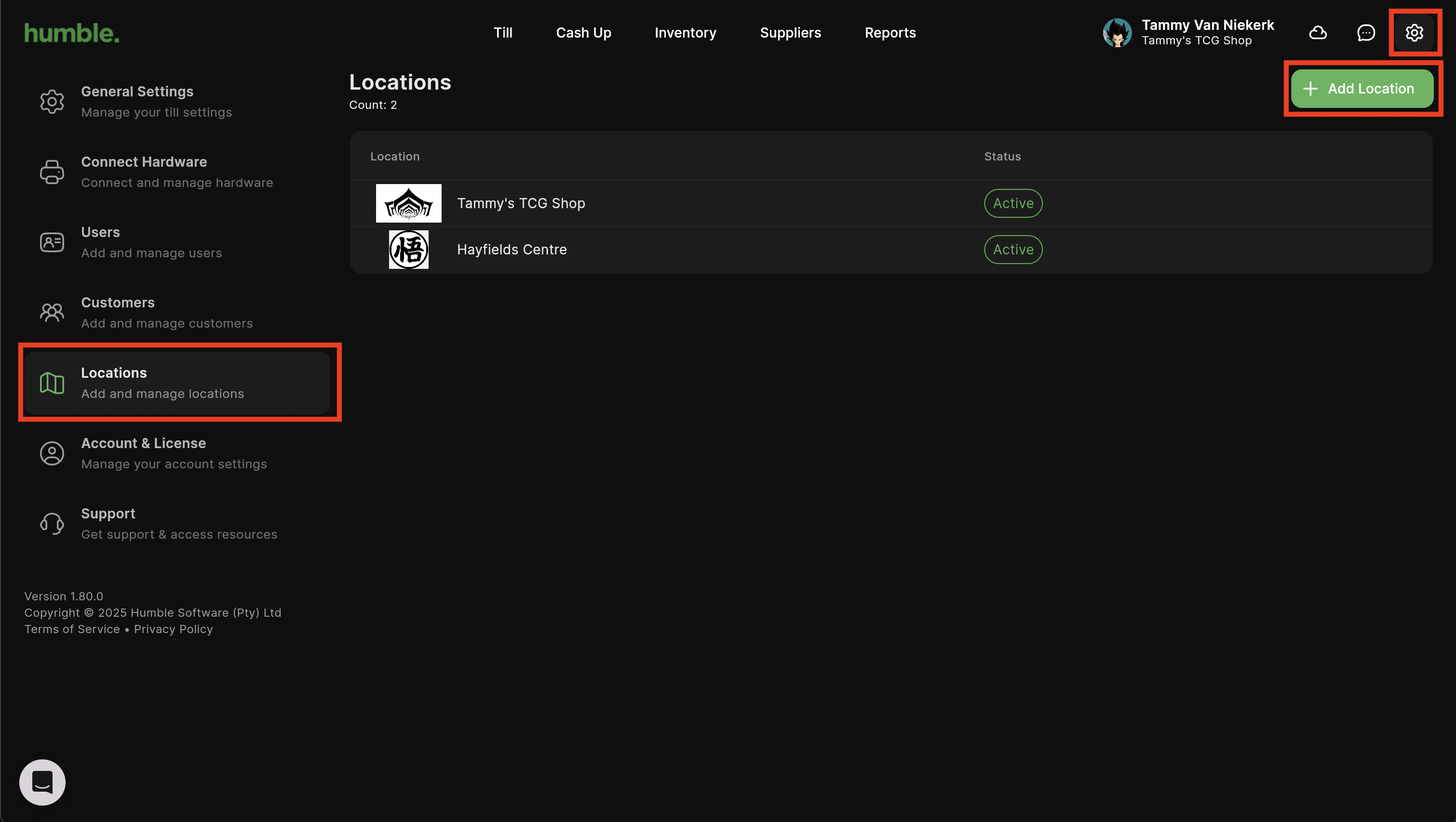
You will be taken to the New Location screen.
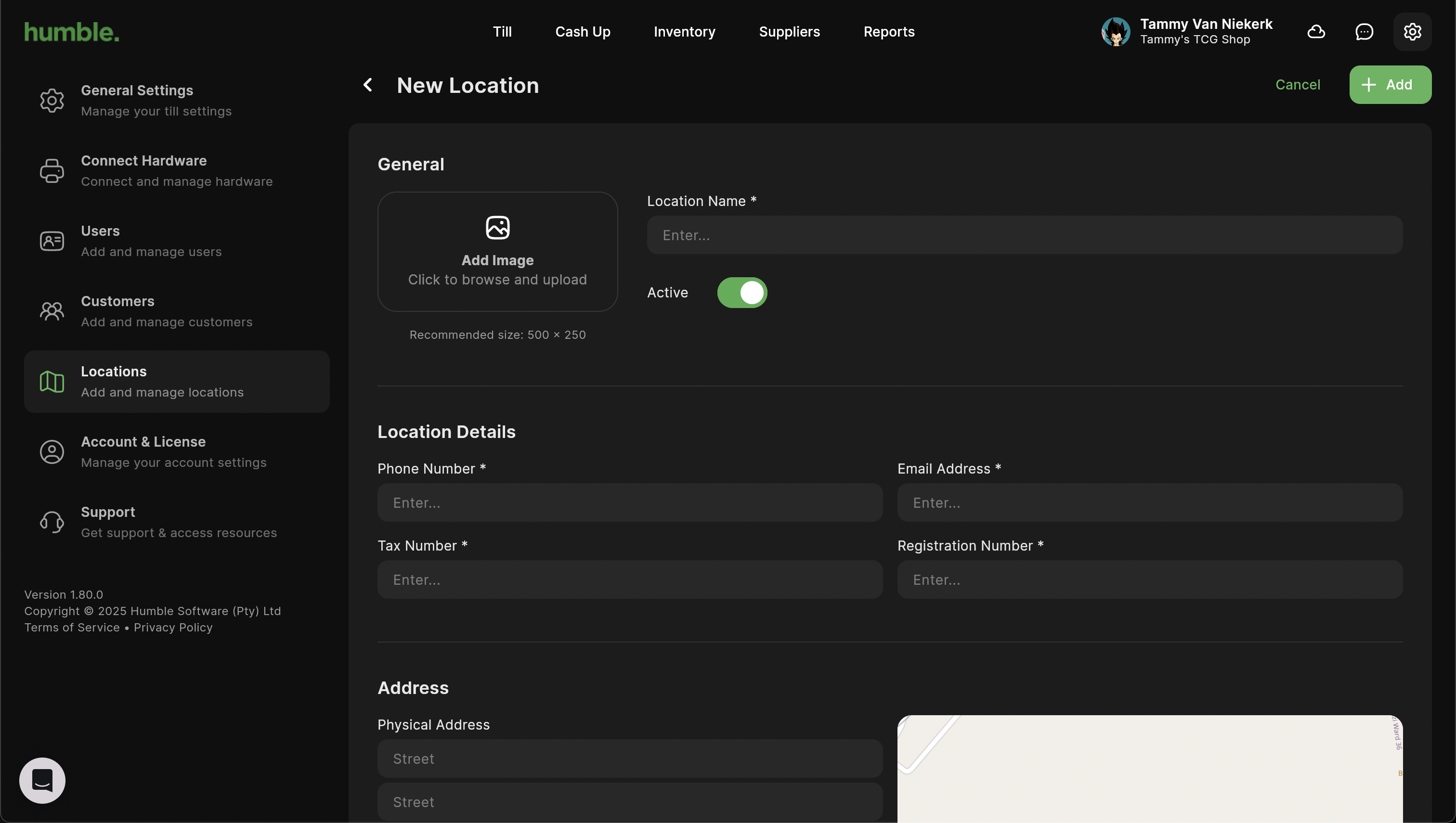
Here you can add in the following details:
Add Logo - Used to quickly identify the site on your till screen, the logo will also print on your receipts
Location Name - The name of the location
Physical Address - The physical address of the location
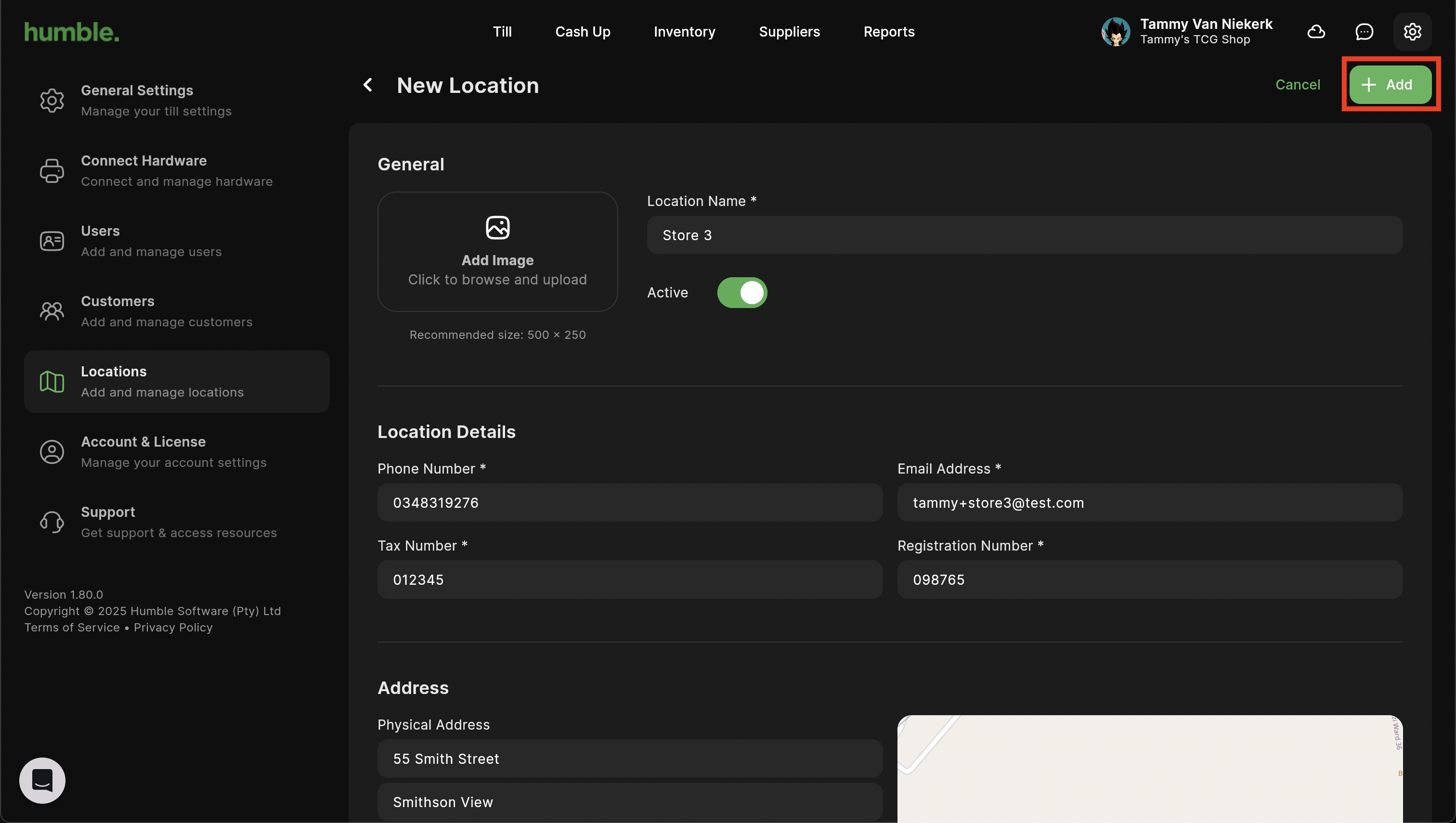
Once all the relevant details have been added in, click Add.
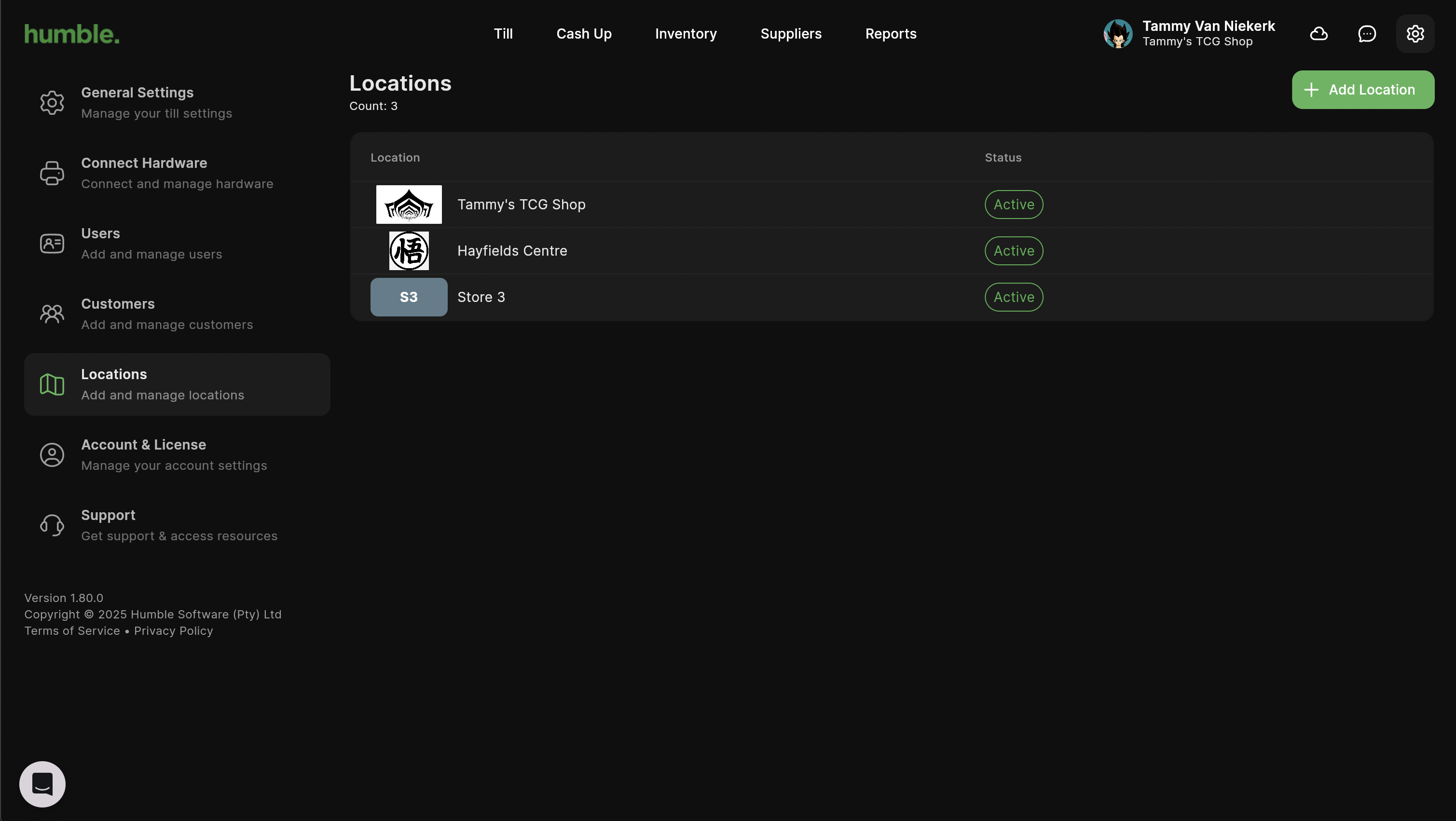
You will be taken back to the Locations screen, and your location will be added to your location list.
Was this article helpful?
That’s Great!
Thank you for your feedback
Sorry! We couldn't be helpful
Thank you for your feedback
Feedback sent
We appreciate your effort and will try to fix the article