If you would like to add additional information on your receipts, such as a refund policy or your social media details, you can add additional lines to the top and bottom of your receipts.
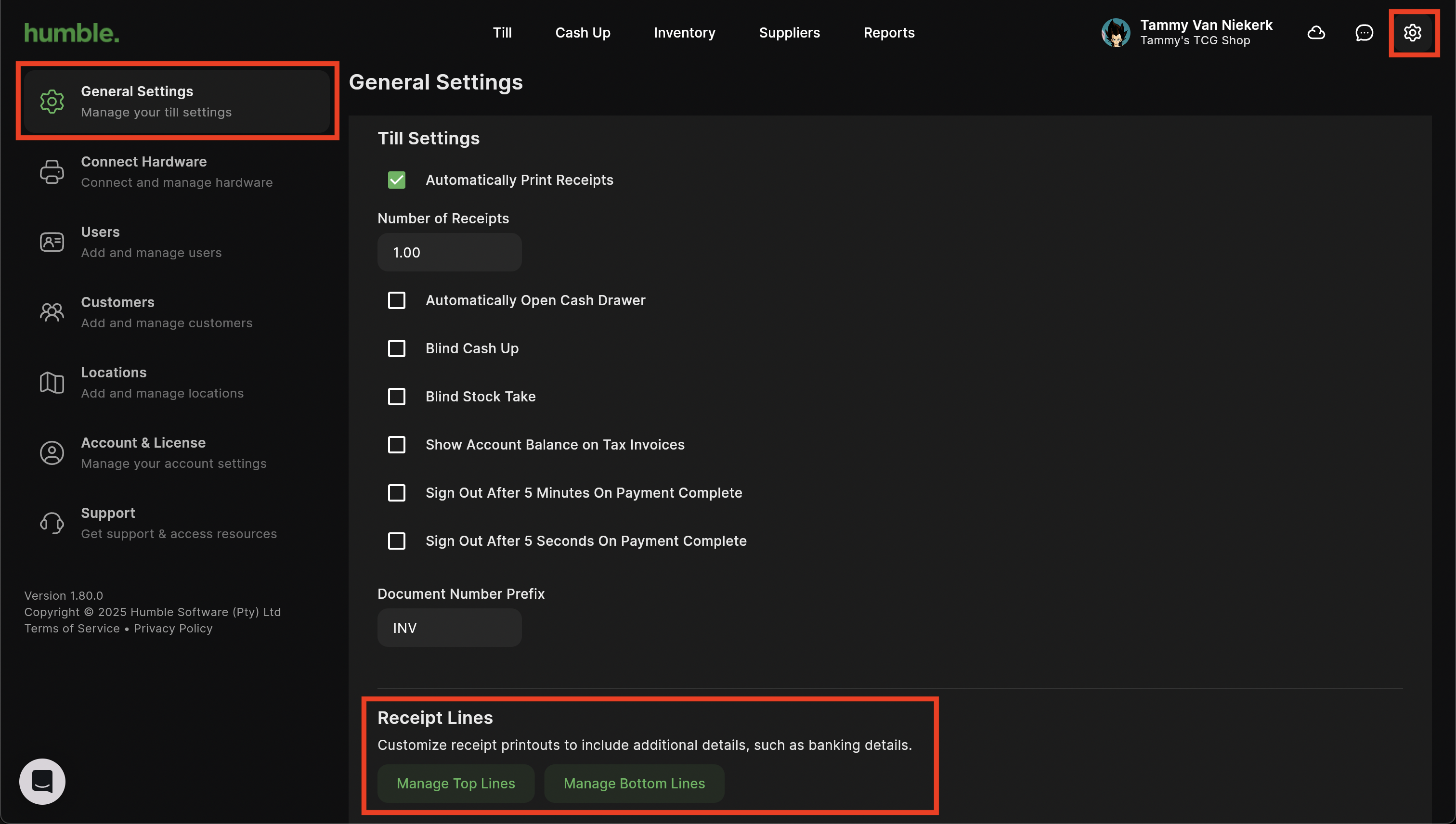
To do this click on Settings (the cog on the top right next to your name). You will be taken to the General Page. Under the Receipt Lines section you can click on Manage Top Lines and Manage Bottom Lines to add extra lines to your receipt.
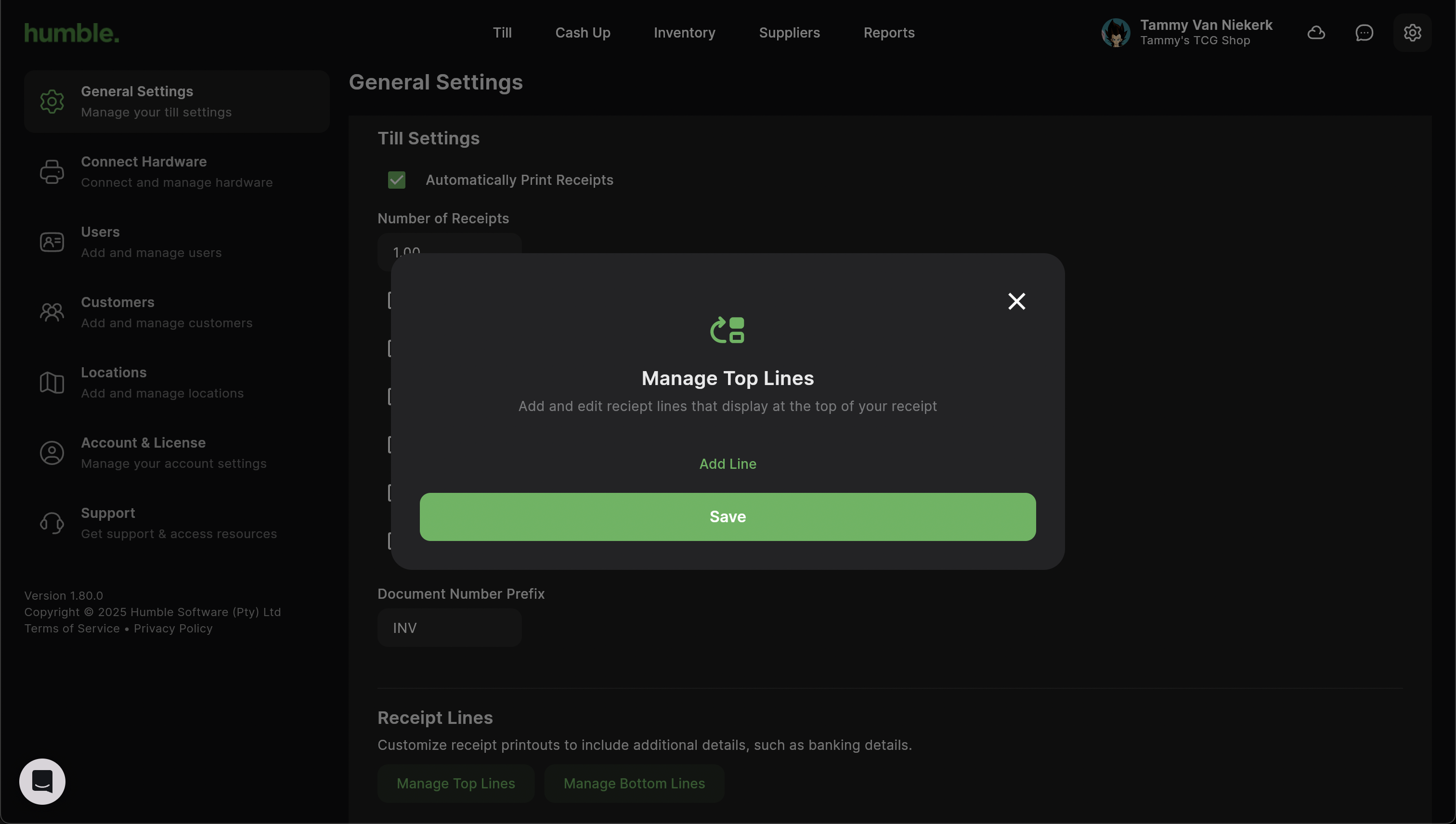
Add add custom top lines, click on Manage Top Lines will open the Manage Top Lines modal. Click on Add Line, a new text field will appear where you can add in your custom line.
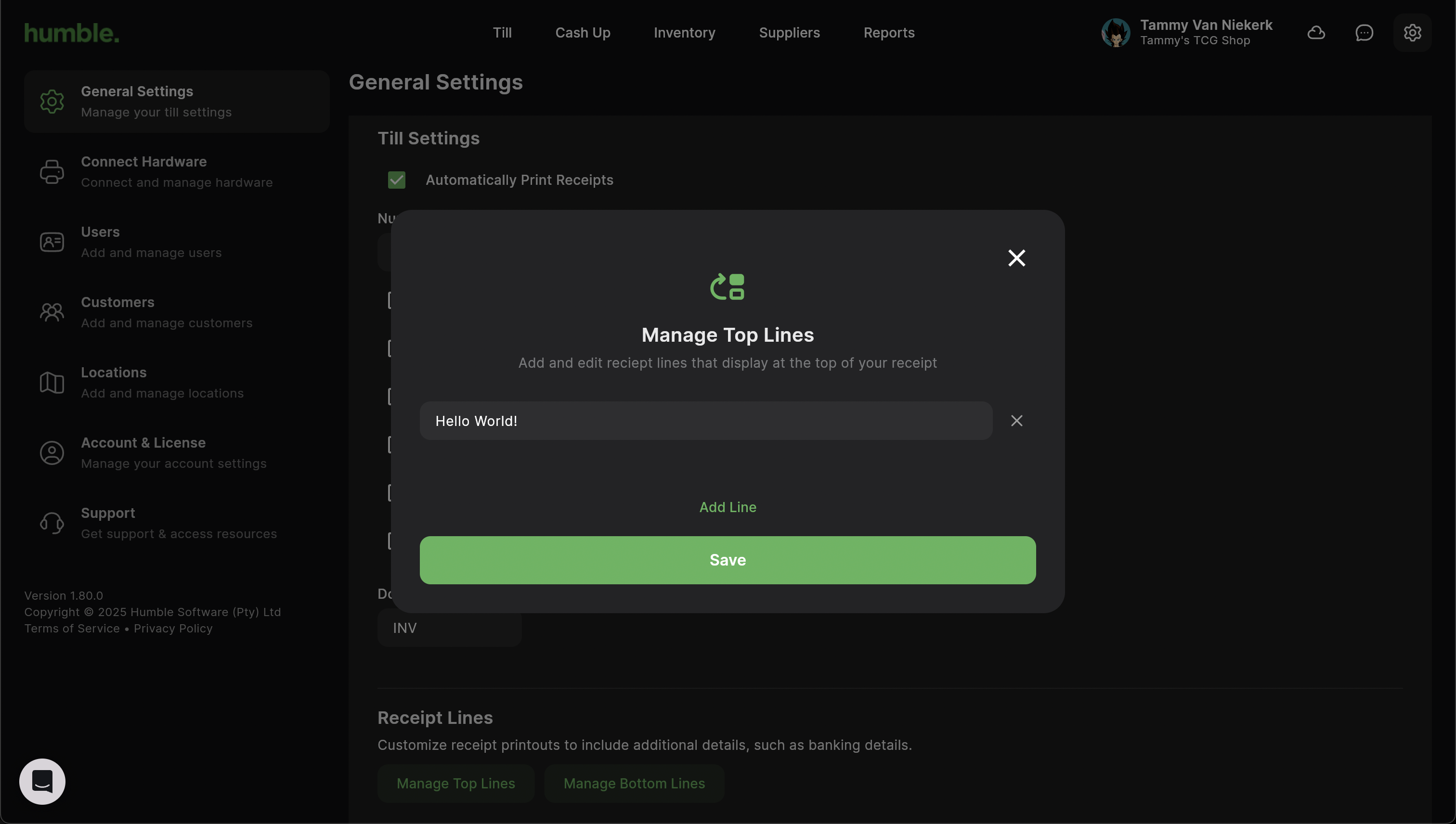
Once you have added in your custom top lines, click Save. Your custom top lines will be saved and the modal will close.
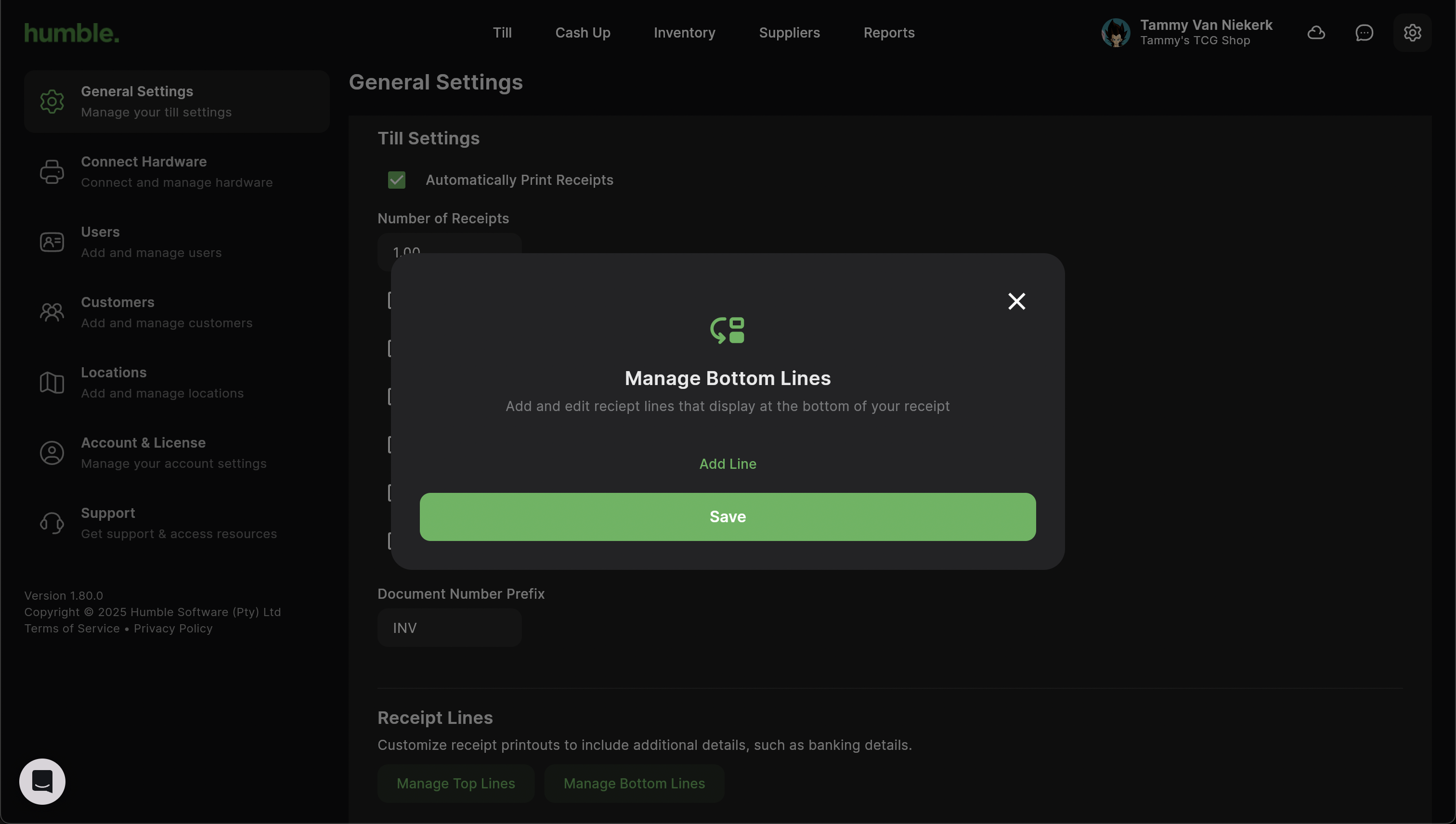
Add add custom bottom lines, click on Manage Bottom Lines will open the Manage Bottom Lines modal. Click on Add Line, a new text field will appear where you can add in your custom line.
Once you have added in your custom bottom lines, click Save.Your custom bottom lines will be saved and the modal will close.
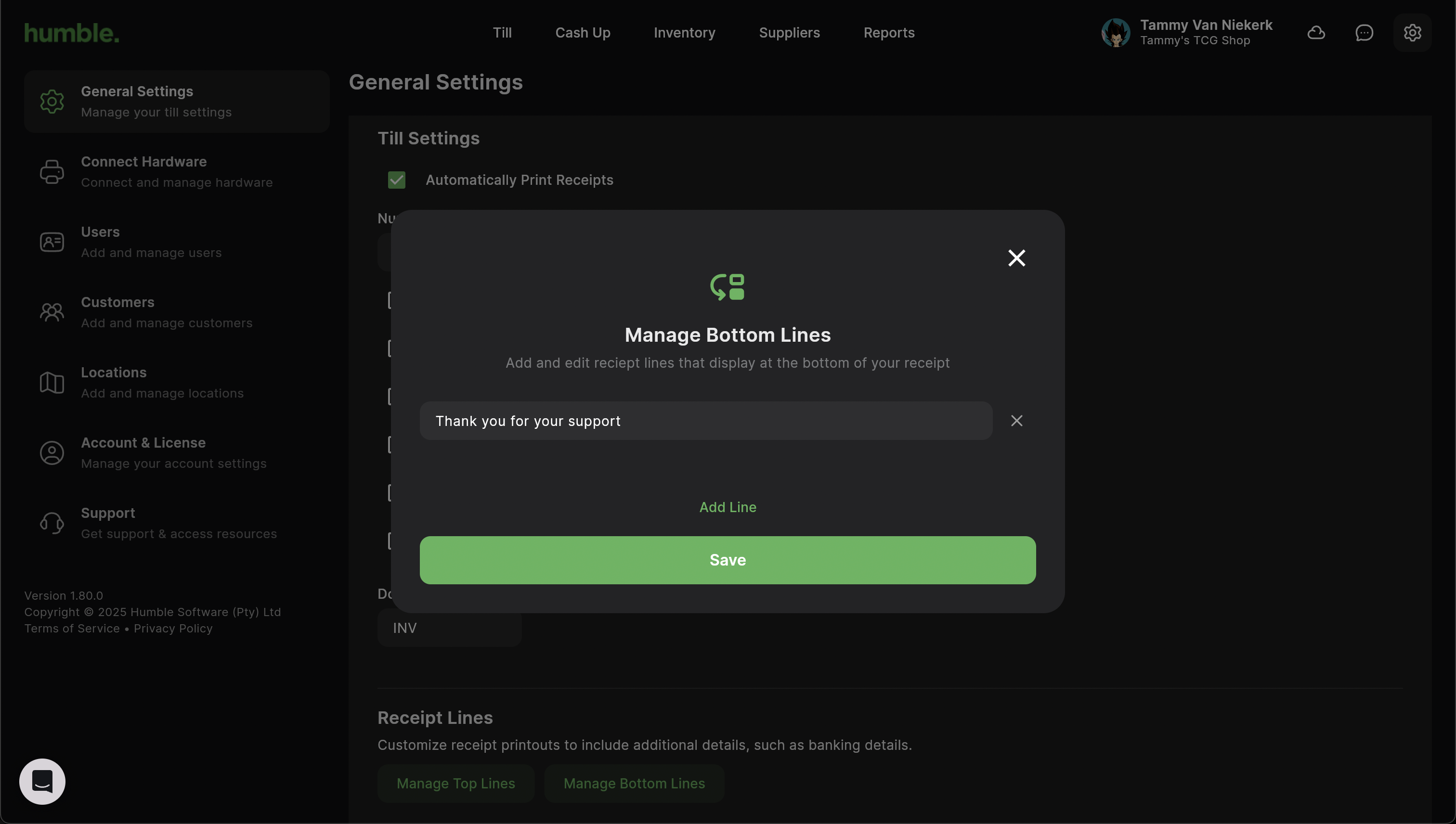
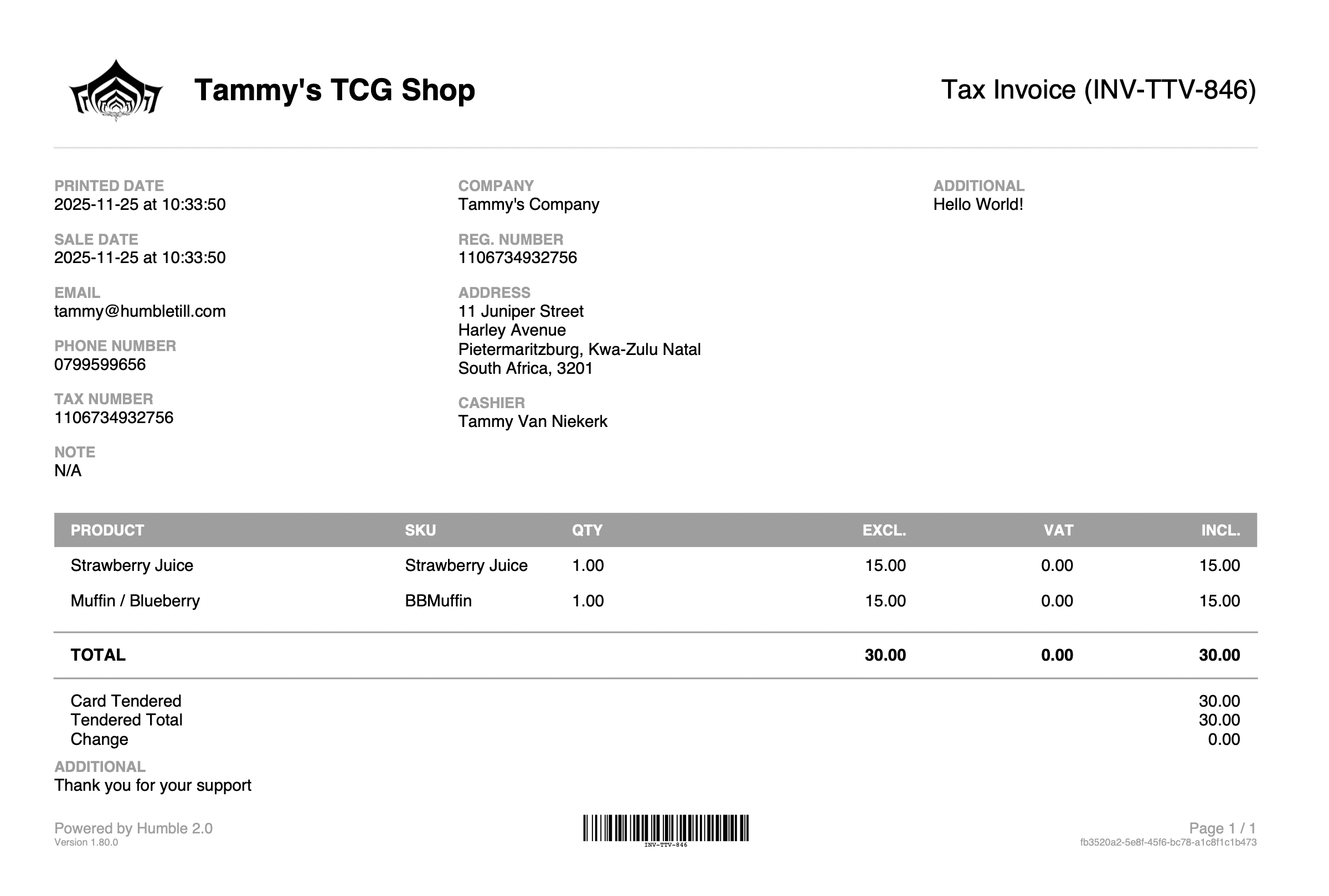
Your custom receipt lines will now print on your pro formas and tax invoices.
Was this article helpful?
That’s Great!
Thank you for your feedback
Sorry! We couldn't be helpful
Thank you for your feedback
Feedback sent
We appreciate your effort and will try to fix the article